How to Complete Your First Cutting Project with Thunder AccuMetal
Preface:
This article focuses on how to complete your first project using the Thunder AccuMetal machine
Pre-Startup Safety Checks:
Before using the machine for the first time, Thunder Laser recommends that all customers review the machine installation instructions to ensure that the machine has been properly installed and configured.
Link:Thunder AccuMetal Unpacking Handling and Installation Guide
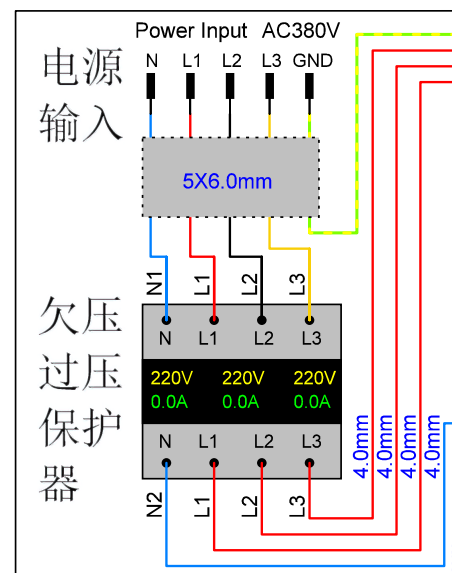
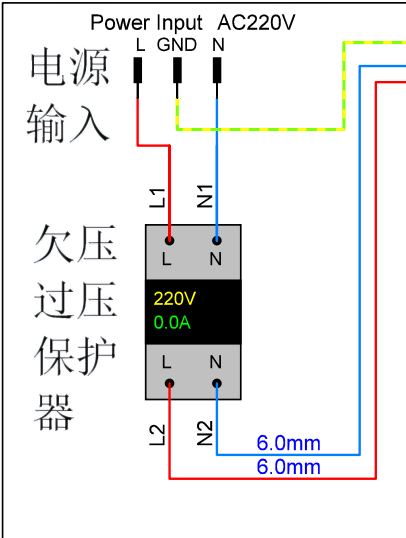
NOTE: The undervoltage and overvoltage protection range is 210–240 V per phase. If the input voltage falls outside this range or fluctuates excessively, use a suitable voltage stabilizer or combined transformer and voltage stabilizer to ensure a stable power supply. |
|
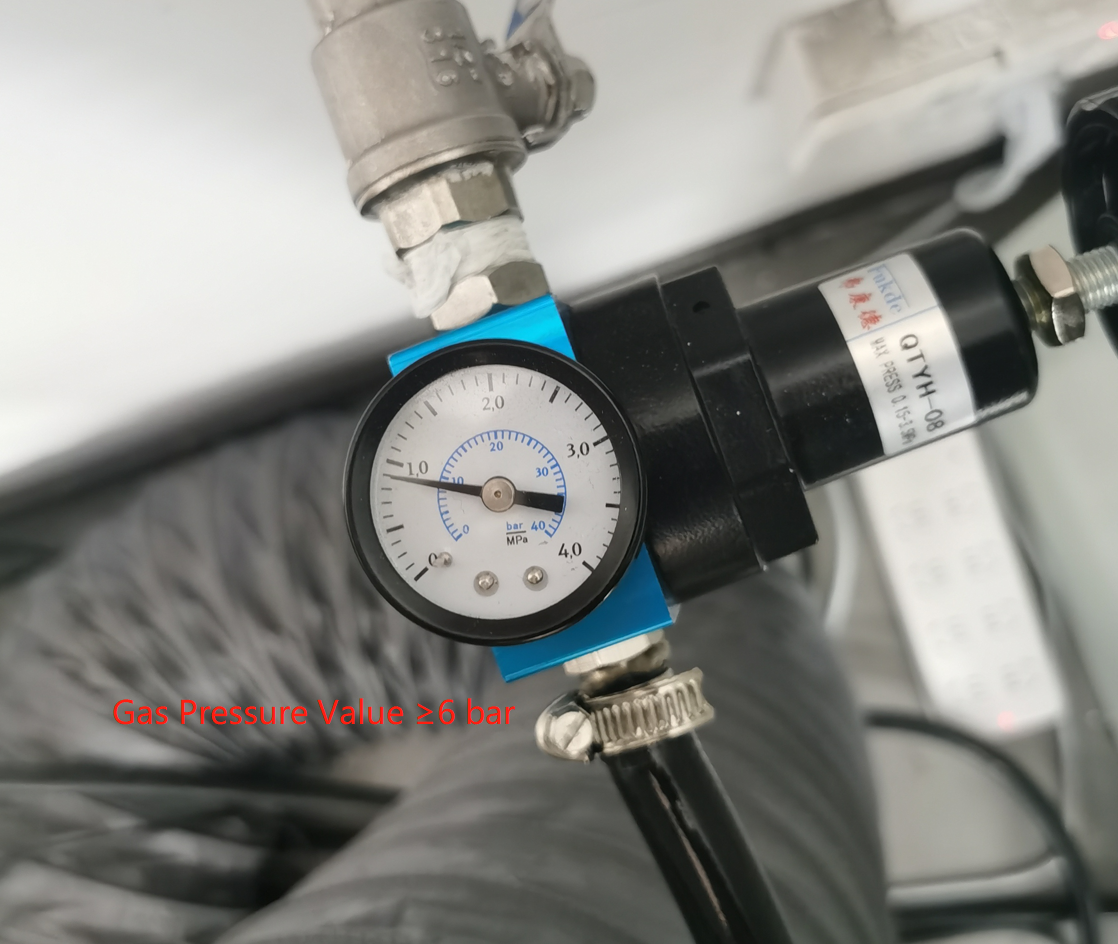
NOTE: Unit Conversion: 1 bar=0.1Mpa The assist gas pressure must remain within the specified minimum and maximum limits:
The minimum pressure is required to maintain adequate cutting performance, while the maximum pressure is limited by the pressure ratings of components such as solenoid valves and other pneumatic components. CAUTION: Do not exceed the specified maximum pressure, as this may damage pneumatic components or cause system malfunctions. |
|
|
|
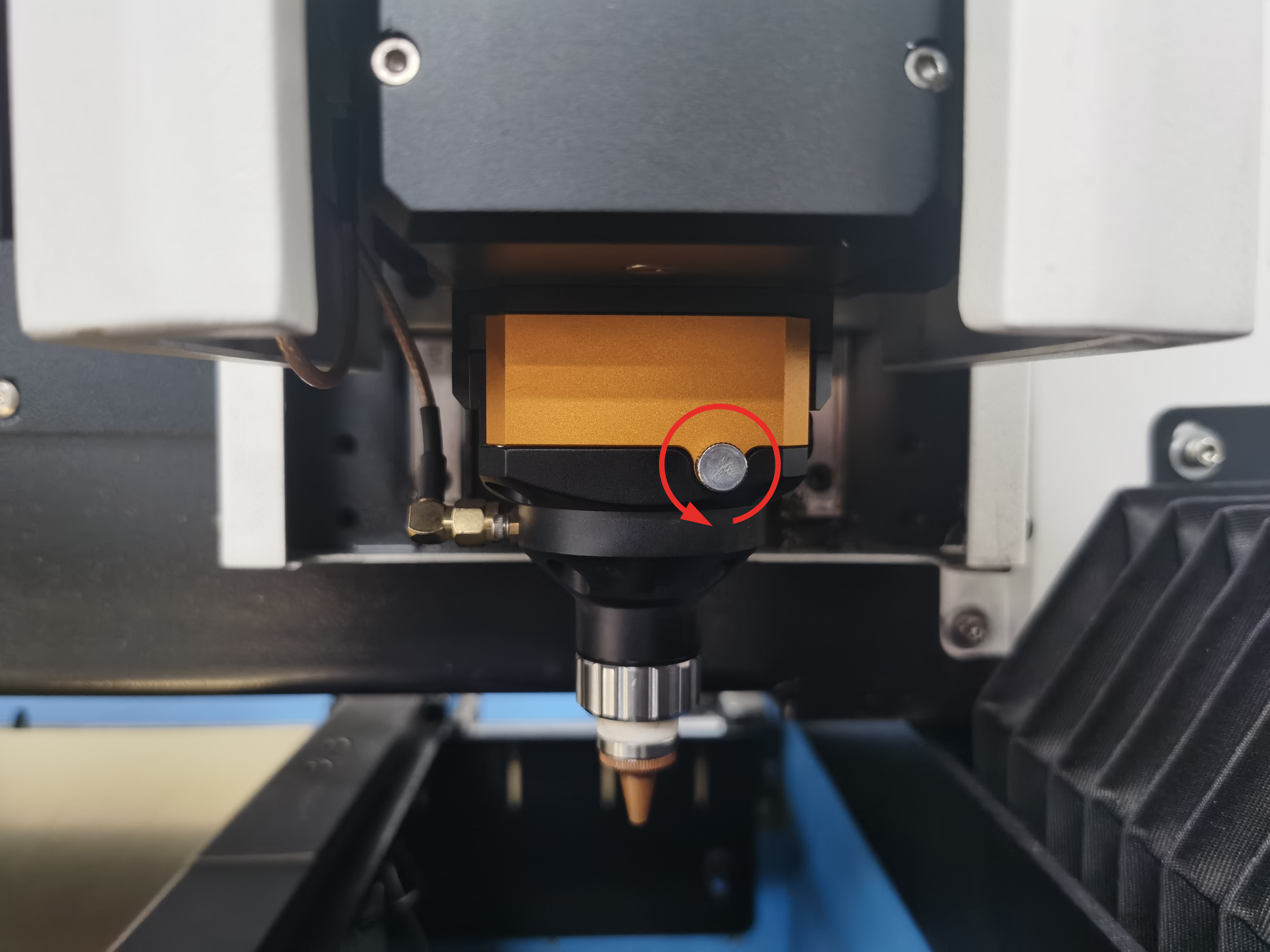
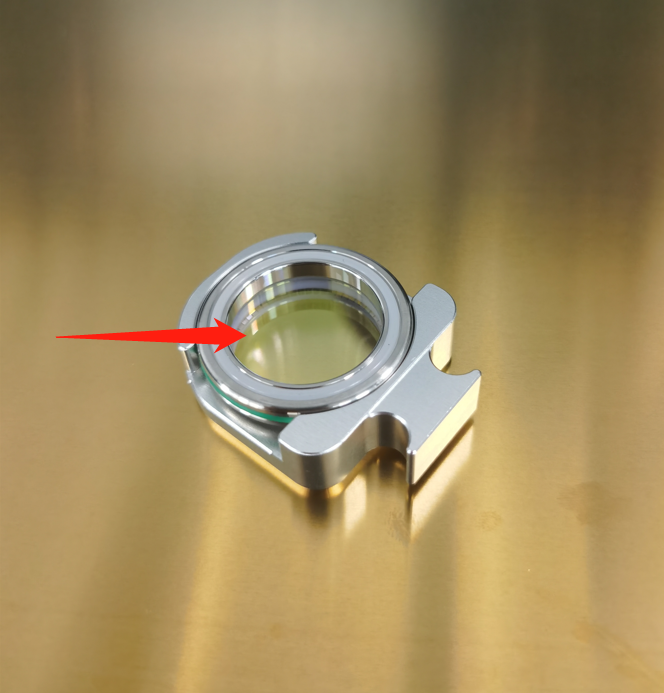
NOTE: If the protective lens is dirty, clean it carefully using a lint-free wipe and optical-grade alcohol. If the protective lens is damaged, a spare lens is provided in the machine's toolbox for replacement. The protective lens is a consumable part and is not covered under warranty. We recommend inspecting and maintaining it regularly and keeping spare lenses on hand to avoid unexpected downtime and ensure consistent cutting quality. |
|
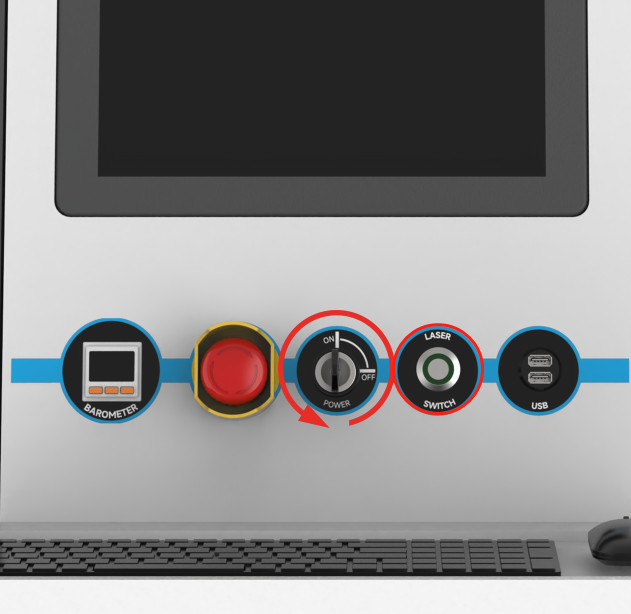
Correct Power-On Sequence
|
|
NOTE: When NcStudio starts, it needs to load the system configuration and machine parameters, which may temporarily require additional system memory. Therefore, the software may take approximately one minute to open. The interface may appear temporarily unresponsive during this process. This is normal. Please wait for the software to finish loading, and avoid repeatedly clicking the software icon or restarting the computer. |
|
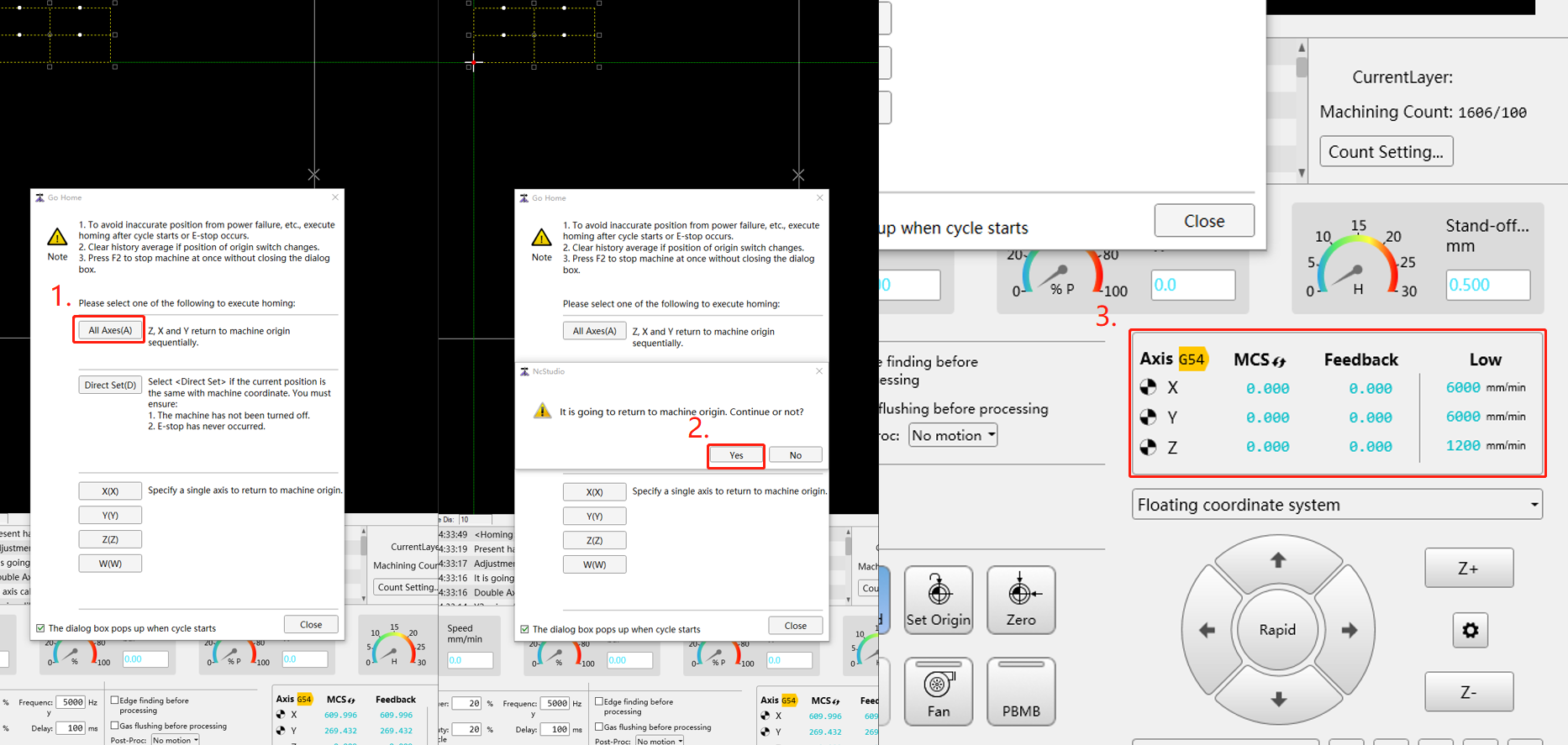
Wait for the machine to move to the bottom-left corner and for the X, Y, and Z coordinates to reset to (0, 0, 0). Once all axes have completed homing, you can close the window. |
|

Operating Procedures
1. Capacitive Calibration
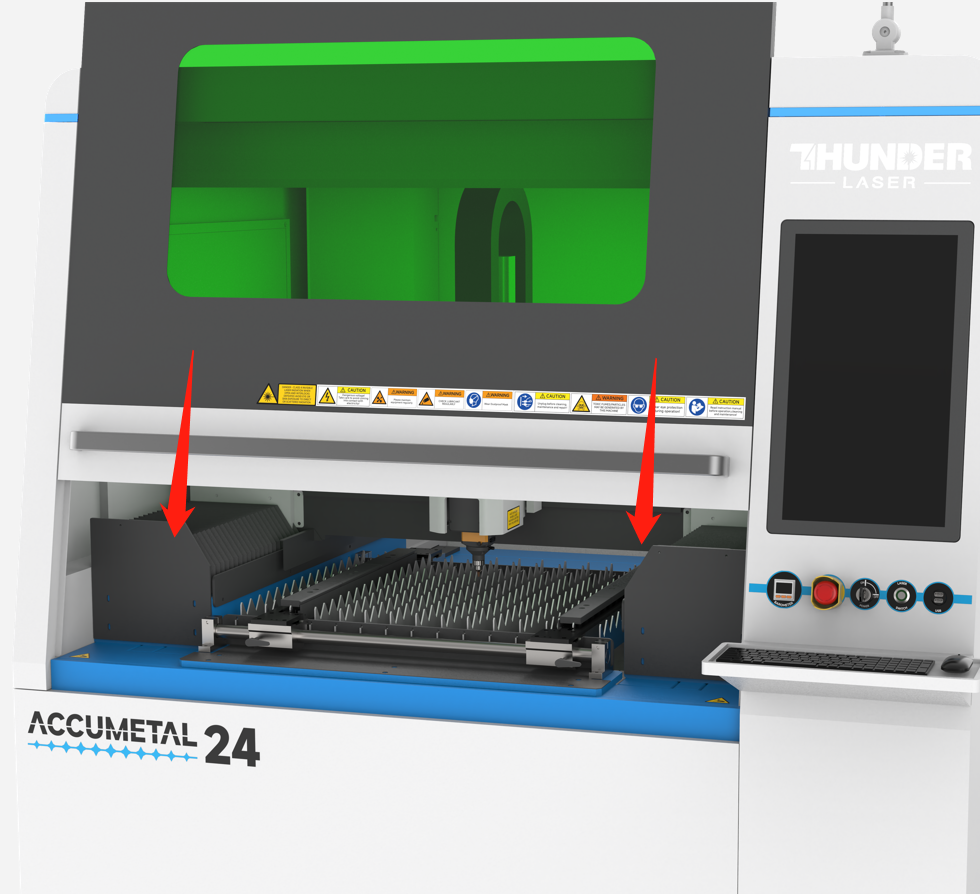
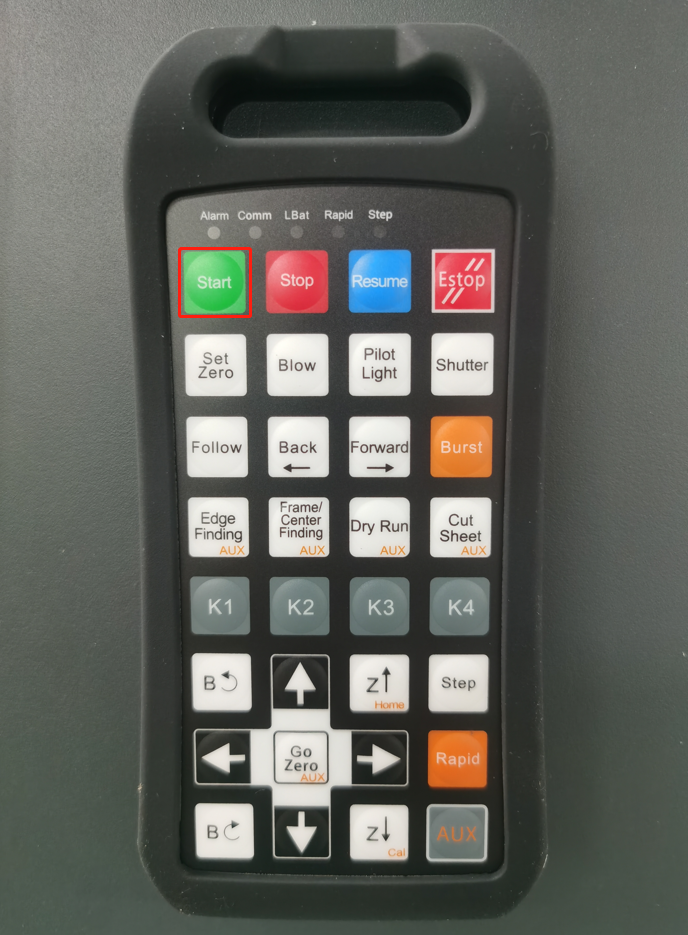
1.1. Place the material on the cutting bed, then press the K1 button on the control panel to clamp the workpiece securely in place. Introduction to the Pneumatic Clamping System:Pneumatic Clamp Operation and Gas Supply System Overview |
|
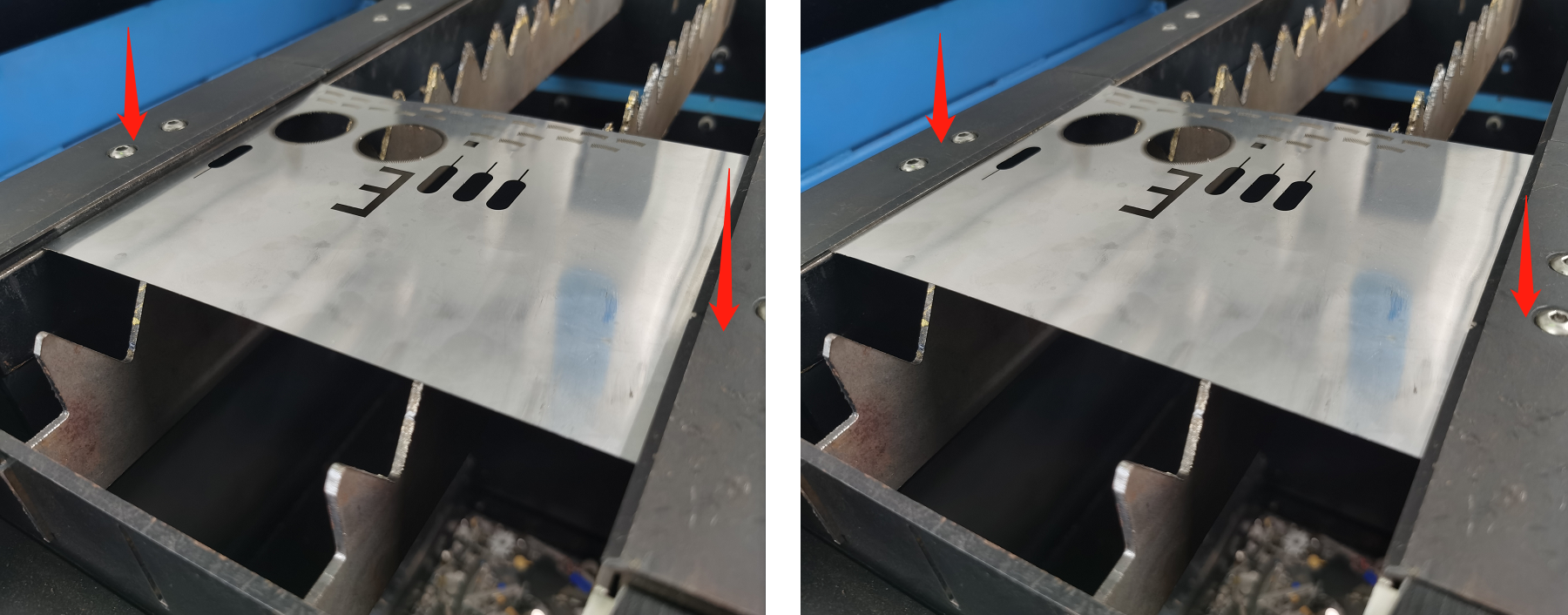
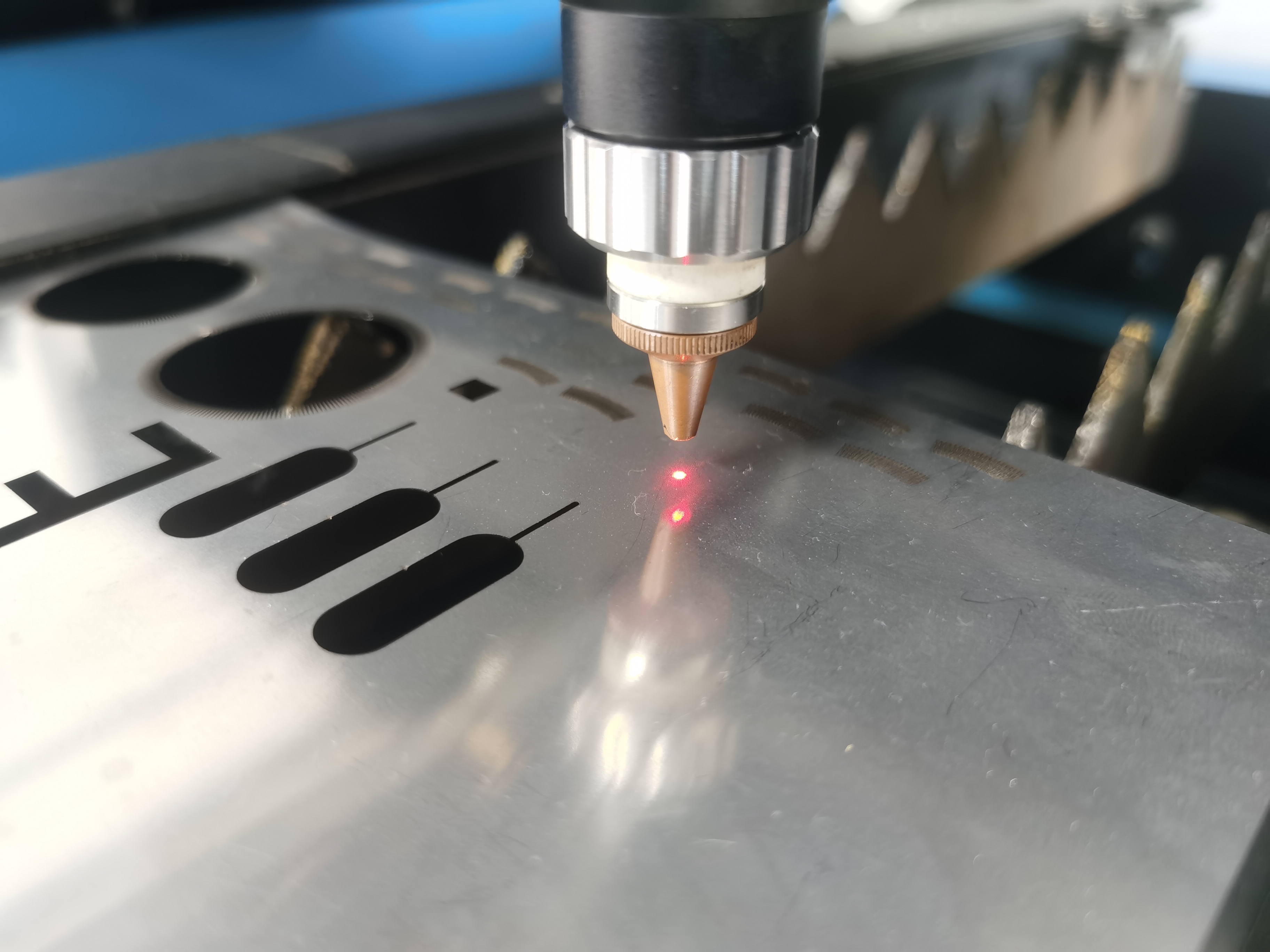
1.2. Move the cutting head above the workpiece, then use the Z-axis controls to position the nozzle approximately 2–3 mm above the material surface. |
|
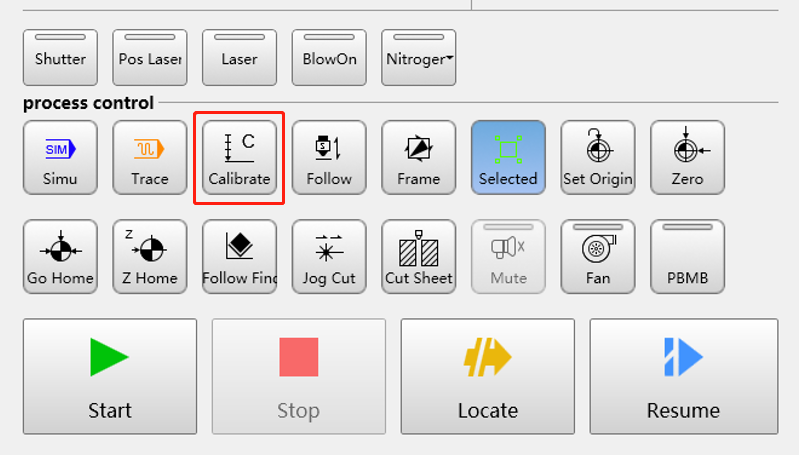
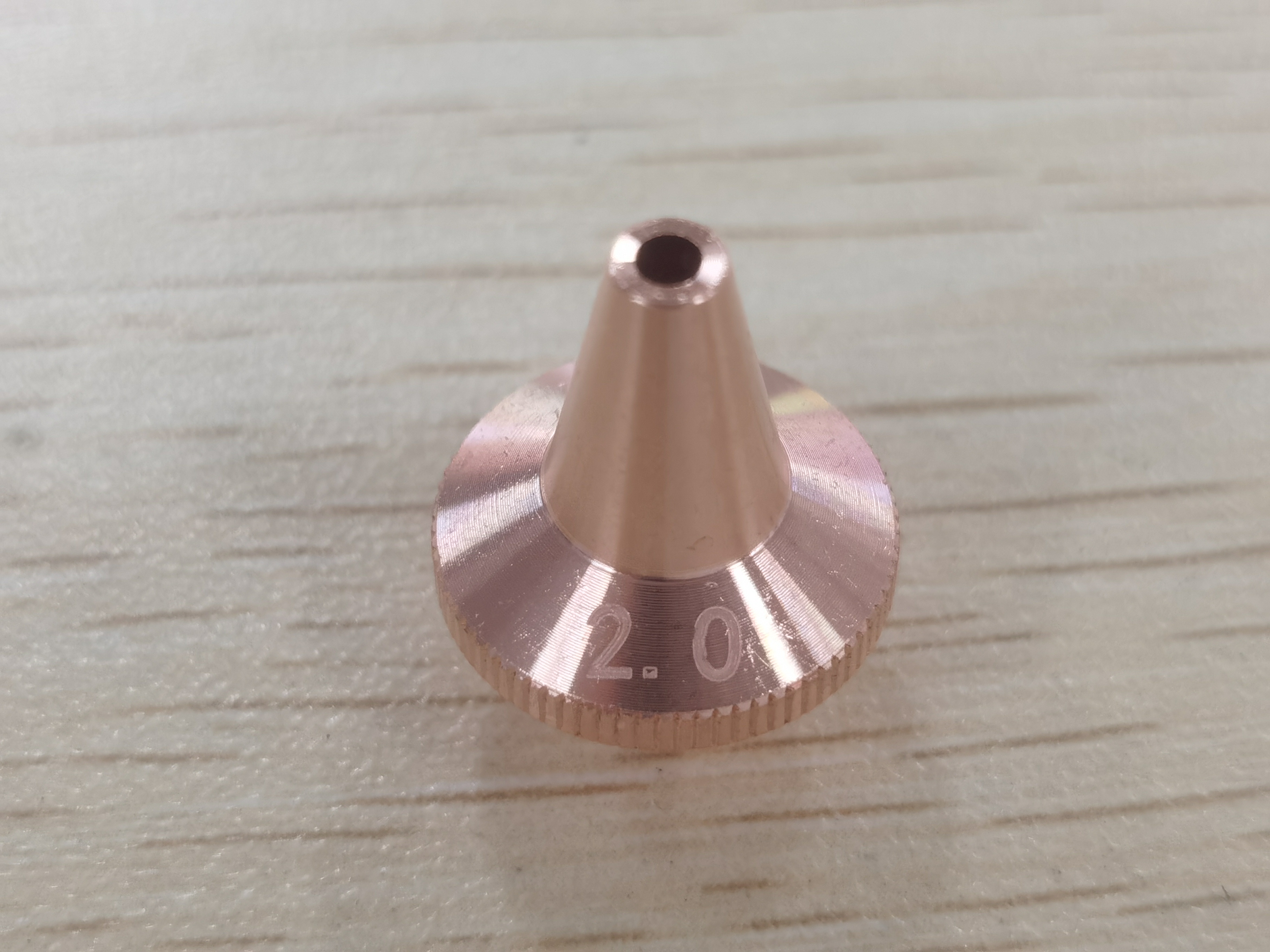
1.3. Click the Calibrate button and wait for the calibration process to complete. NOTE: Capacitive calibration must be performed each time the machine is restarted or the nozzle is replaced. The nozzle diameter is marked on the outer surface of the nozzle. |
|
|
2. Import Cutting Process Parameters
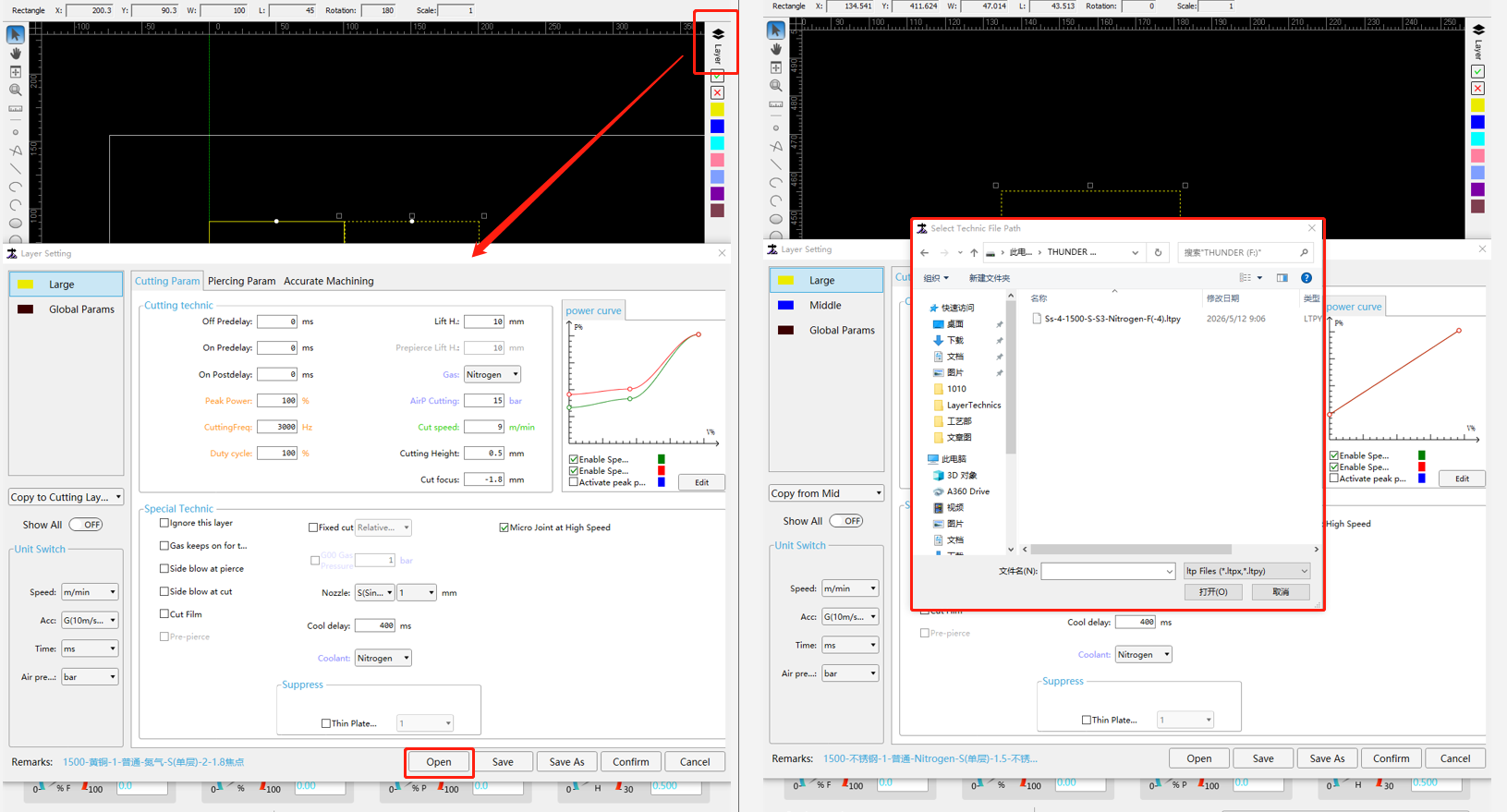
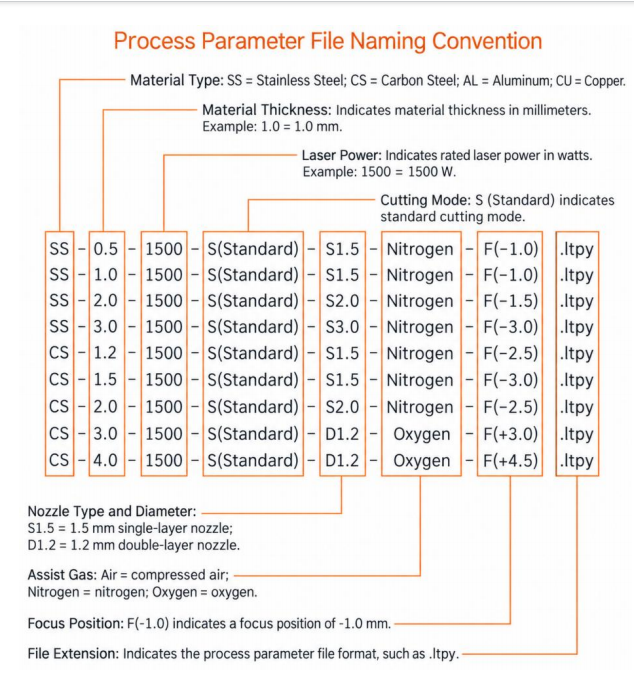
Open the Layer > Click Open > Select the cutting process parameter file (.ltpy). |
|
NOTE: Cutting process parameter files are provided on the USB drive included with the machine. These parameters can be used as a reference and may require adjustments depending on the material and cutting conditions. Parameter File Location: U-disk that came with the Machine > AccuMetal > Application of Thunder Laser > Parameters If you need to cut other types of metal that are not covered by the provided parameters, you can contact Thunder Laser Technical Support for assistance or use the existing parameters as a starting point and adjust them through testing. |
|
3. Test Cutting
NOTE: Since material composition and assist gas quality may vary, we recommend performing a test cut before starting the actual cutting job to ensure that the cutting quality meets your requirements.
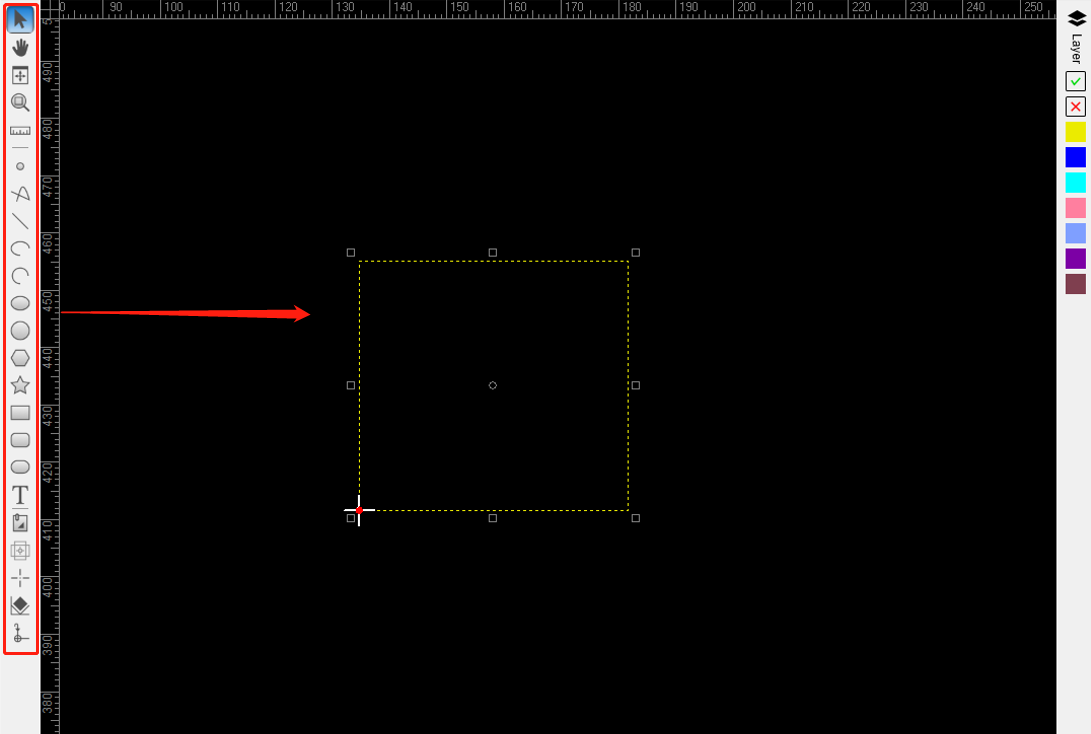
2.2. Draw a rectangle of the desired size in the software, then perform a test cut on the material. |
|
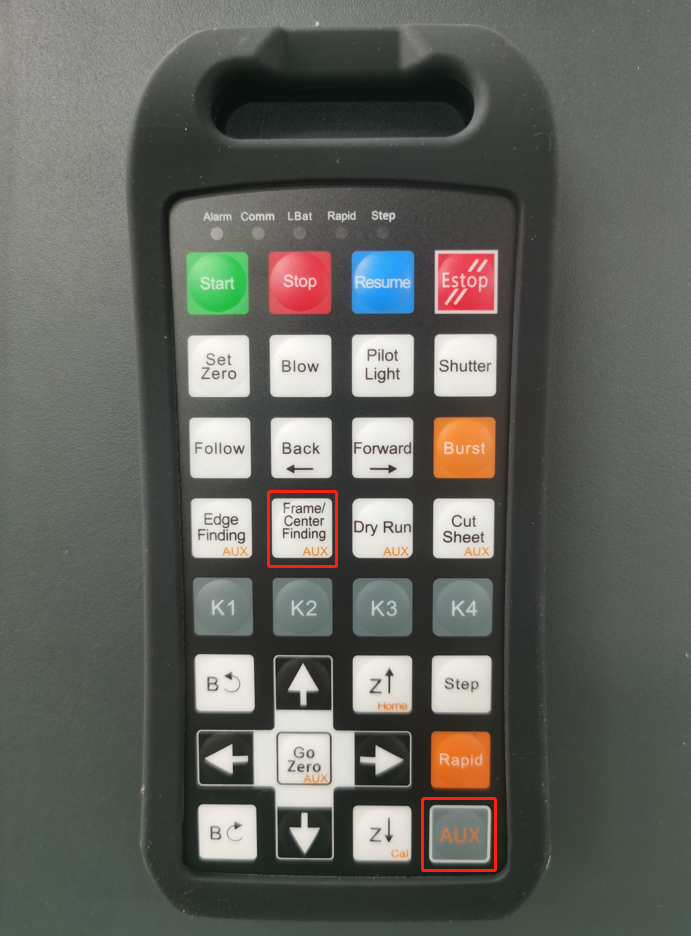
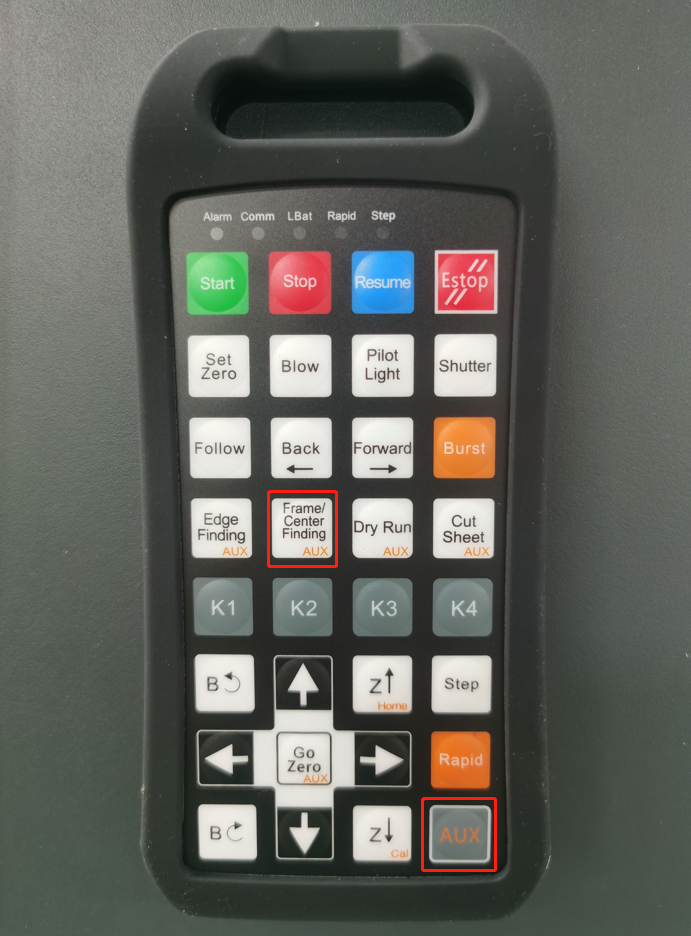
2.3. Press the AUX and Framing/Center Finding buttons simultaneously to check the cutting area. |
|
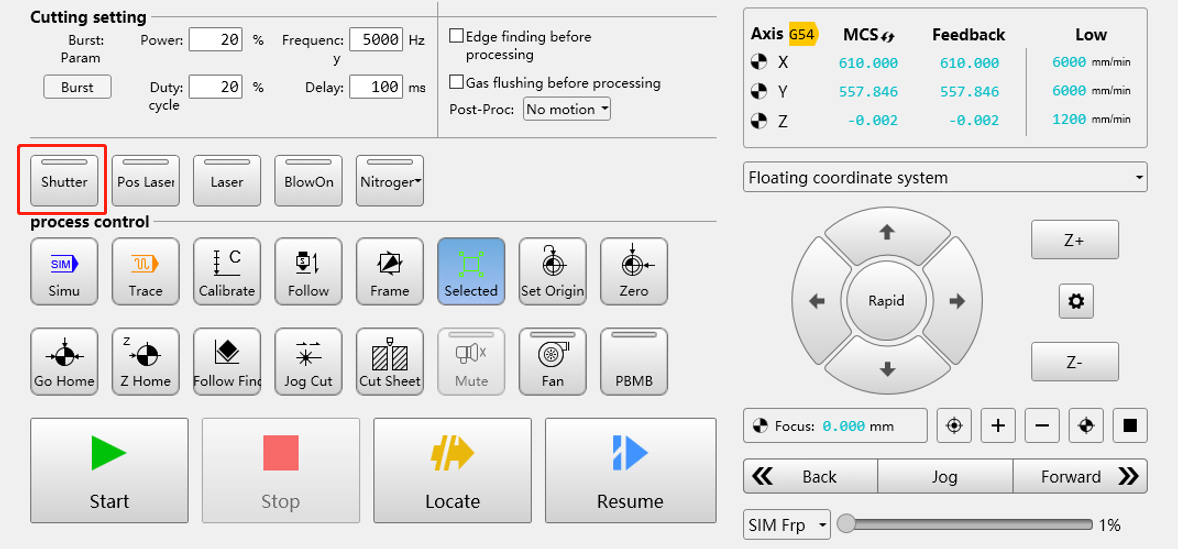
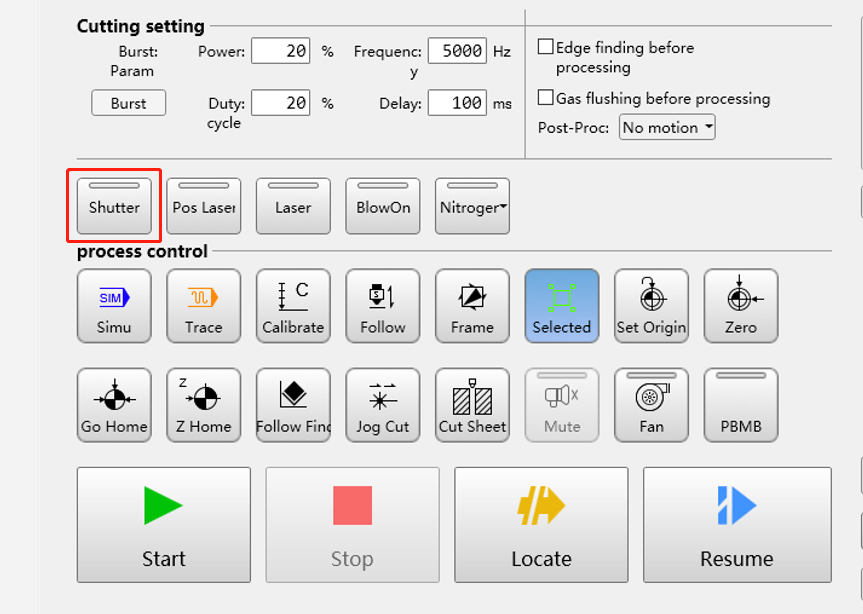
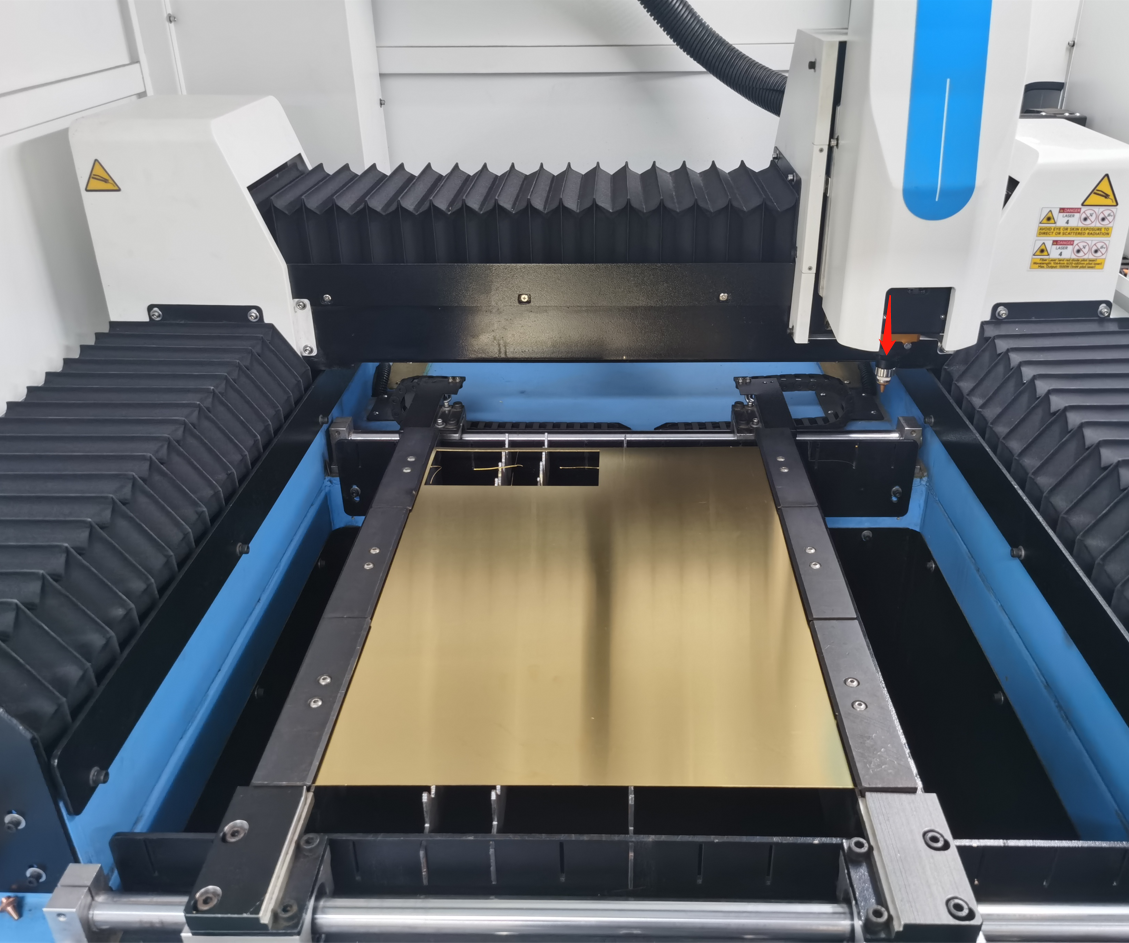
2.4. Press the Shutter button to open the laser shutter > Close the safety door > Click the Start button to begin the test cut. NOTE: Once the laser shutter is open, the red positioning light at the cutting nozzle will turn off, indicating that the laser shutter is open and the machine is ready for cutting. |
|
| |
| |
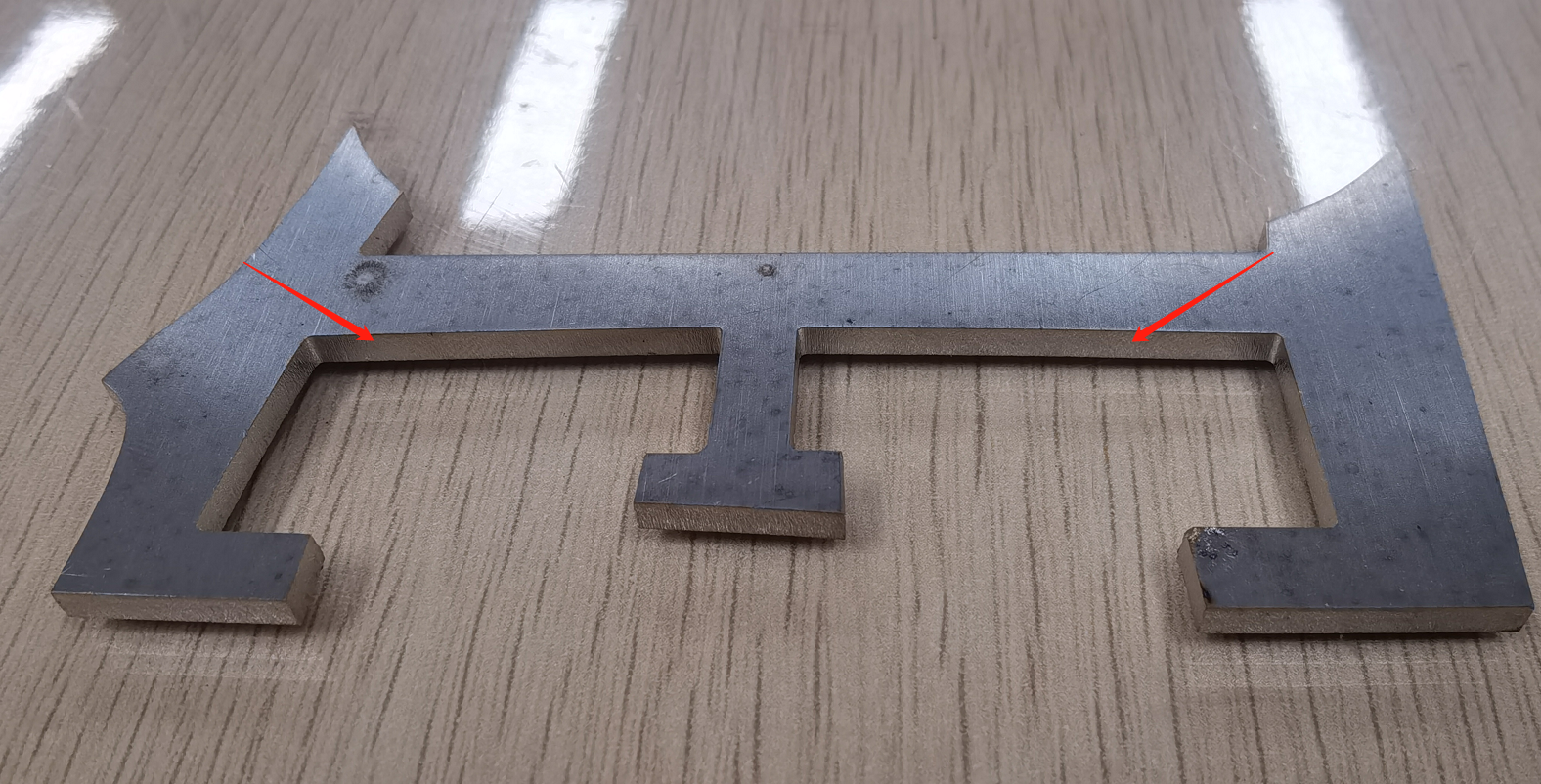
2.5. Check whether the kerf width is appropriate, the cut edges are smooth and even, and there is no excessive dross buildup. If the cutting quality meets your requirements, proceed with the cutting job. Otherwise, adjust the cutting parameters and perform another test cut until the desired results are achieved. For more information about the cutting parameters, please refer to the following link: |
|
4. Start Cutting
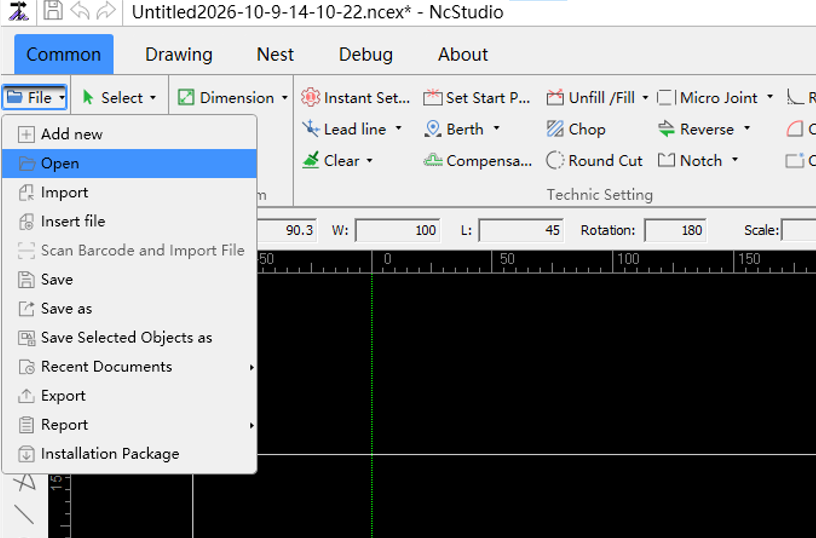
3.1. Import a DXF drawing file or use the software's built-in drawing tools to create the design for cutting. |
|
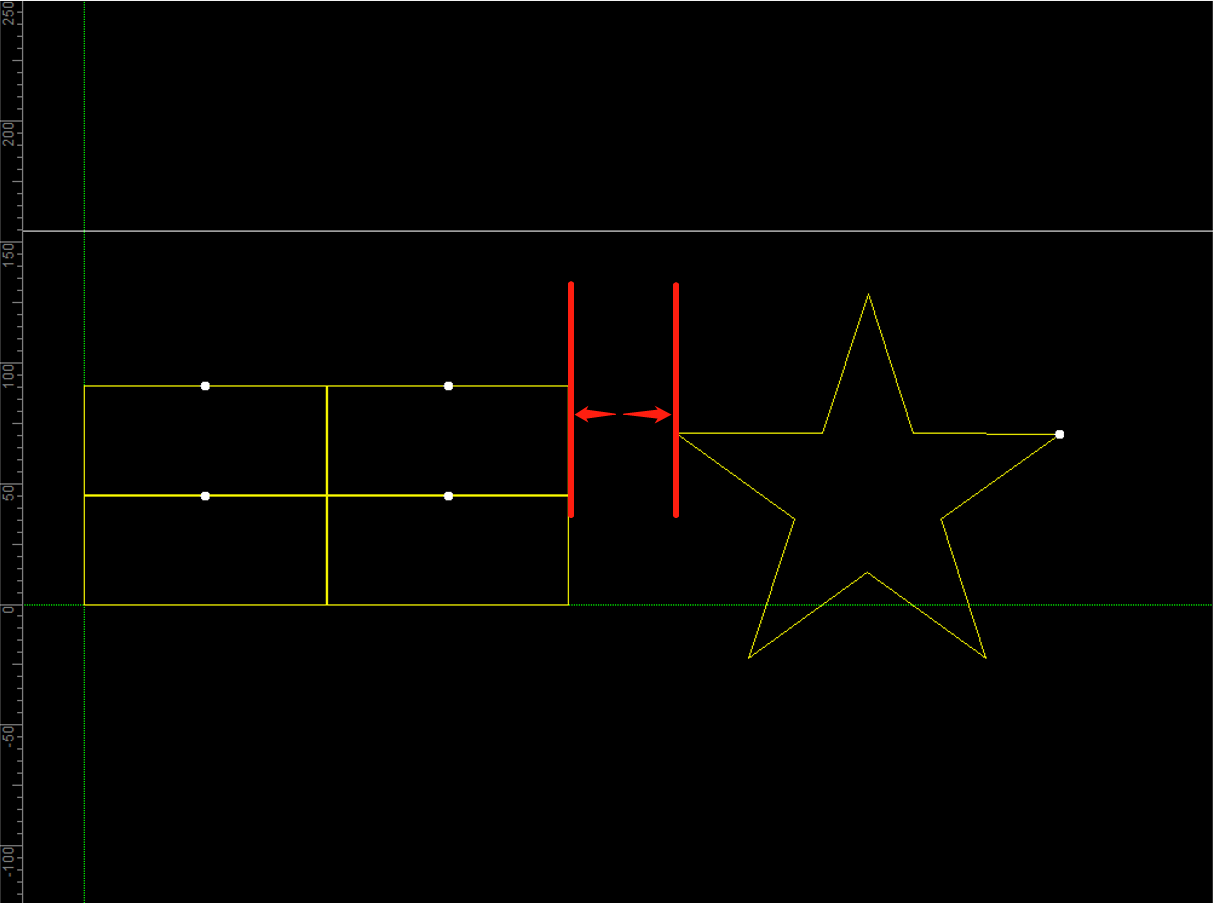
3.2. Optimize the cutting layout and maintain a minimum spacing of 2 mm between parts to reduce heat buildup and minimize the risk of material warping. Excessive heat may cause the metal sheet to deform during cutting, potentially triggering a machine stop. |
|
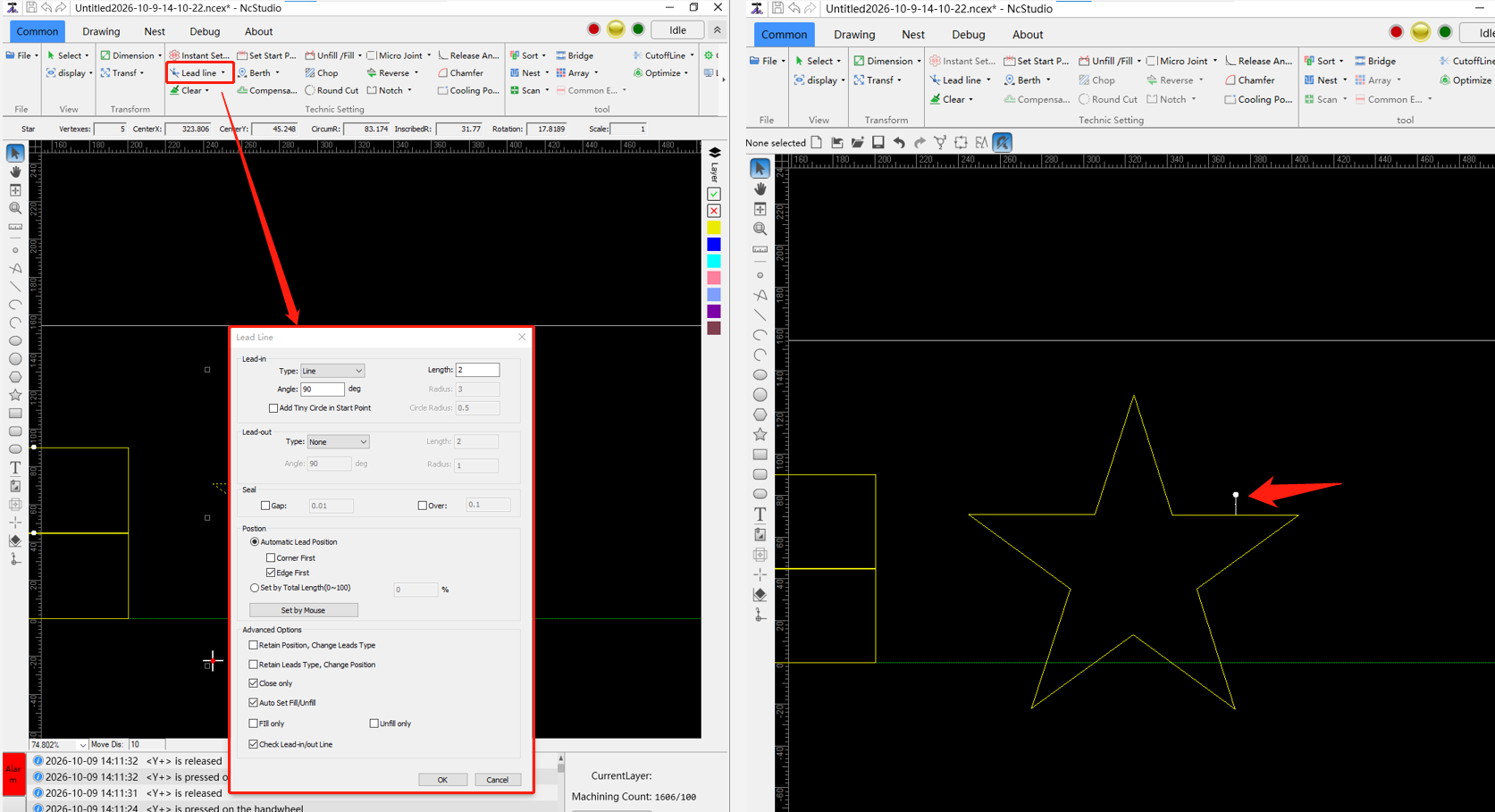
3.3. Add lead-in lines to the cutting paths in the design file. NOTE: Lead-in lines cannot be added to points, scan lines, cut-off lines, fly-cut lines, or text objects. |
|
3.4. Press the AUX and Framing/Center Finding buttons simultaneously to check the cutting area. |
|
3.5. Press the Shutter button to open the laser shutter > Close the safety door > Click the Start button to start the cut. NOTE: Once the laser shutter is open, the red positioning light at the cutting nozzle will turn off, indicating that the laser shutter is open and the machine is ready for cutting. |
|
3.6. Precautions When Removing Cut Parts ①Wear Heat-Resistant Gloves: After opening the safety door, use a suction lifter or tweezers to remove the cut parts. Wear heat-resistant gloves to prevent burns. ②Clean the Cutting Bed: Remove slag and leftover material from the cutting bed slats to prevent debris from contacting the nozzle during the next cutting job and damaging the capacitive height sensor. ③Inspect and Maintain the Nozzle: Use a nozzle cleaning needle to remove minor spatter buildup. If the nozzle is severely deformed or scratched, replace it immediately to avoid affecting cutting quality. |
|

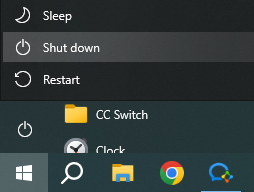
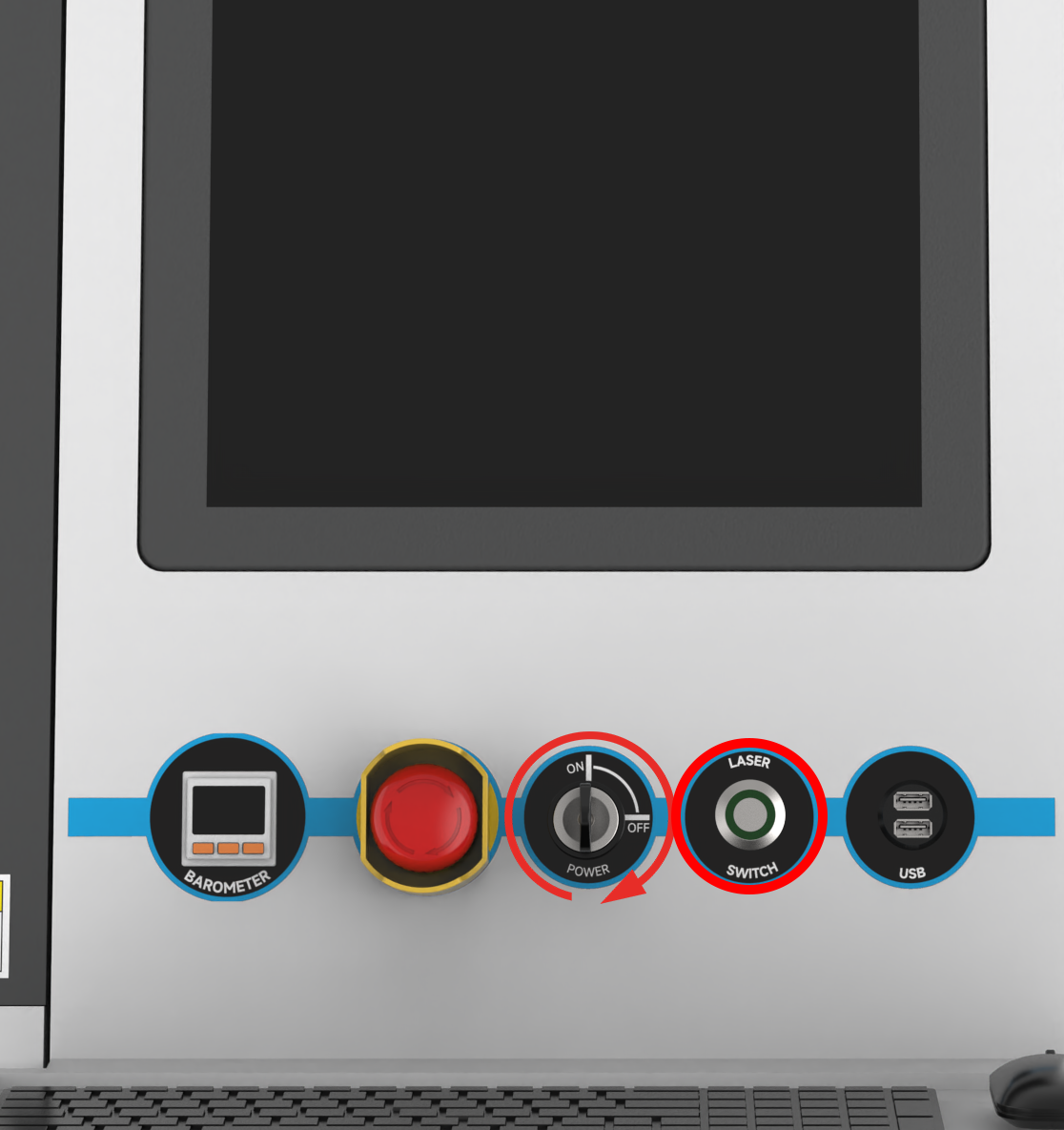
Correct Power-Off Sequence
|
|
|
|
NOTE: Make sure the PC is completely shut down before proceeding. |
|
|
|
Machine Operating Precautions
- Never Bypass the Safety Door Interlock System
The safety doors must remain closed during laser cutting. Never manually bypass or disable the safety door interlock system under any circumstances.
- Never Cut Unknown or Prohibited Materials
Do not cut unidentified or prohibited materials. Certain materials, such as PVC and some painted, coated, or contaminated materials, may release toxic or corrosive fumes during laser cutting. Wet materials may also create additional processing hazards. Always verify material compatibility before cutting.
- Never Touch the Nozzle with a Metal Rod During Cutting
Never touch the nozzle with a metal rod or any other conductive object while the machine is cutting. Doing so may damage the capacitive height sensor and cause the automatic height control system to malfunction.
- Never Fire the Laser Continuously at Full Power
Do not fire the laser continuously at 100% power without cutting material. Prolonged laser emission under these conditions may cause the optical components to overheat and become damaged.
- Never Move the X/Y Axes at High Speed with the Cutting Head Below the Slat Height
Before moving the X/Y axes at high speed, ensure that the cutting head and nozzle are raised above the cutting bed slats and any workpiece obstructions. High-speed movement with the cutting head in a lowered position may cause collisions with the slats or workpiece, resulting in severe or permanent damage.
Still need help?
For specific technical questions or help requests, please open a Ticket with picture or video, so our Support team can assist you ASAP.
For the information provided in the ticket, please refer to this link:
Help Tech Support Troubleshoot Faster
END.