Update the firmware of the WIFI Board
Preface:
This article will guide you through the process of updating the Wi-Fi board firmware.

Preparation
Before starting the firmware update, please prepare the following:
Tools | Picture / Link |
Latest Wi-Fi board firmware file | https://drive.google.com/drive/folders/1PzVXOfk-bcnT1xf4V6bsJaGBZ3PQmAgC?usp=sharing |
Driver package: DriverAssitant_v5.1.1 | |
Firmware update tool: RKDevTool_Release_v2.84 | |
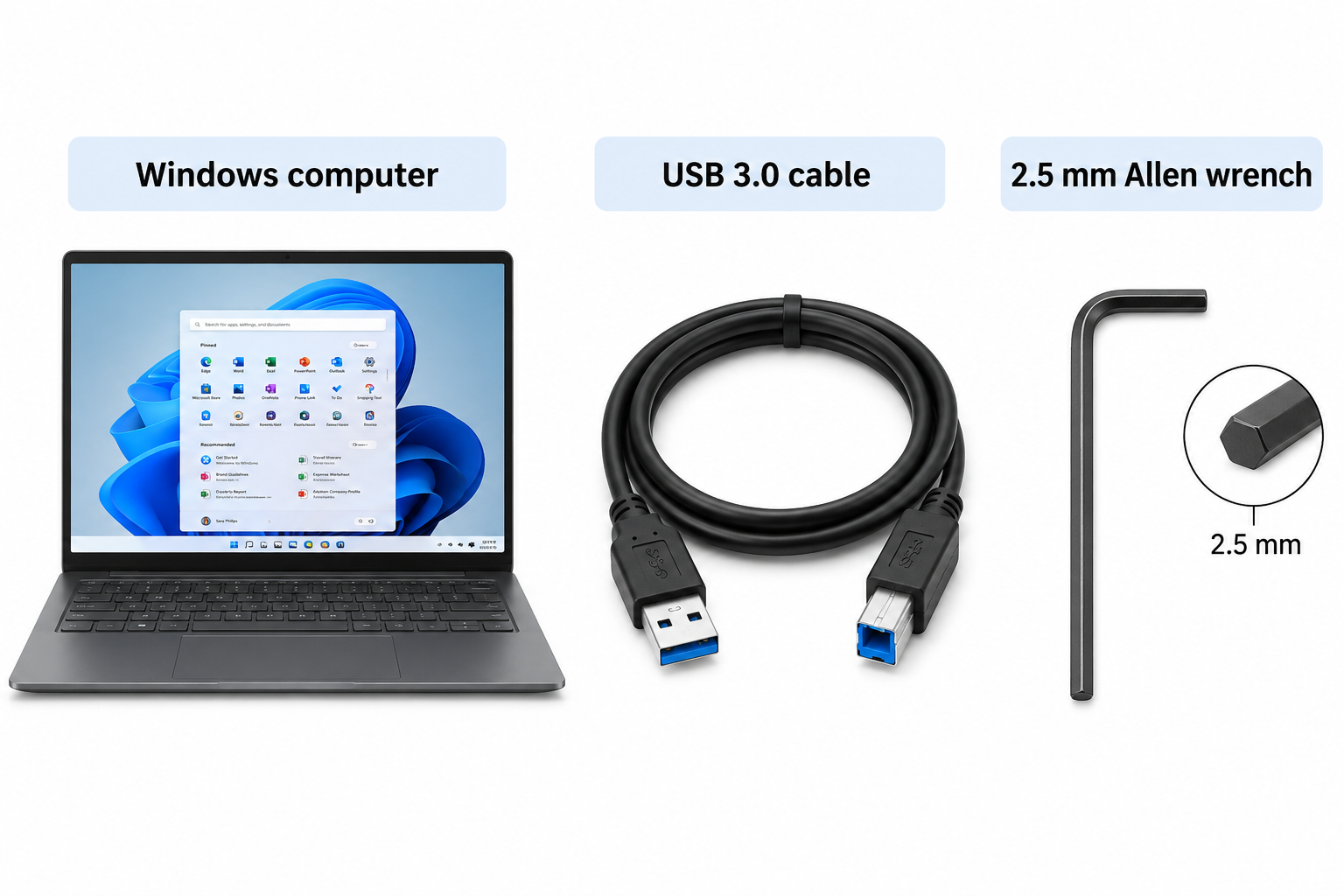
Windows computer |
|
USB 3.0 cable | |
2.5 mm Allen wrench |
Video Guide
For a video tutorial on how to update the Wi-Fi board firmware, please refer to the link below.
How to Update the Wi-Fi Board Firmware
Required Items
Step 1 – Connect the Machine to the Computer
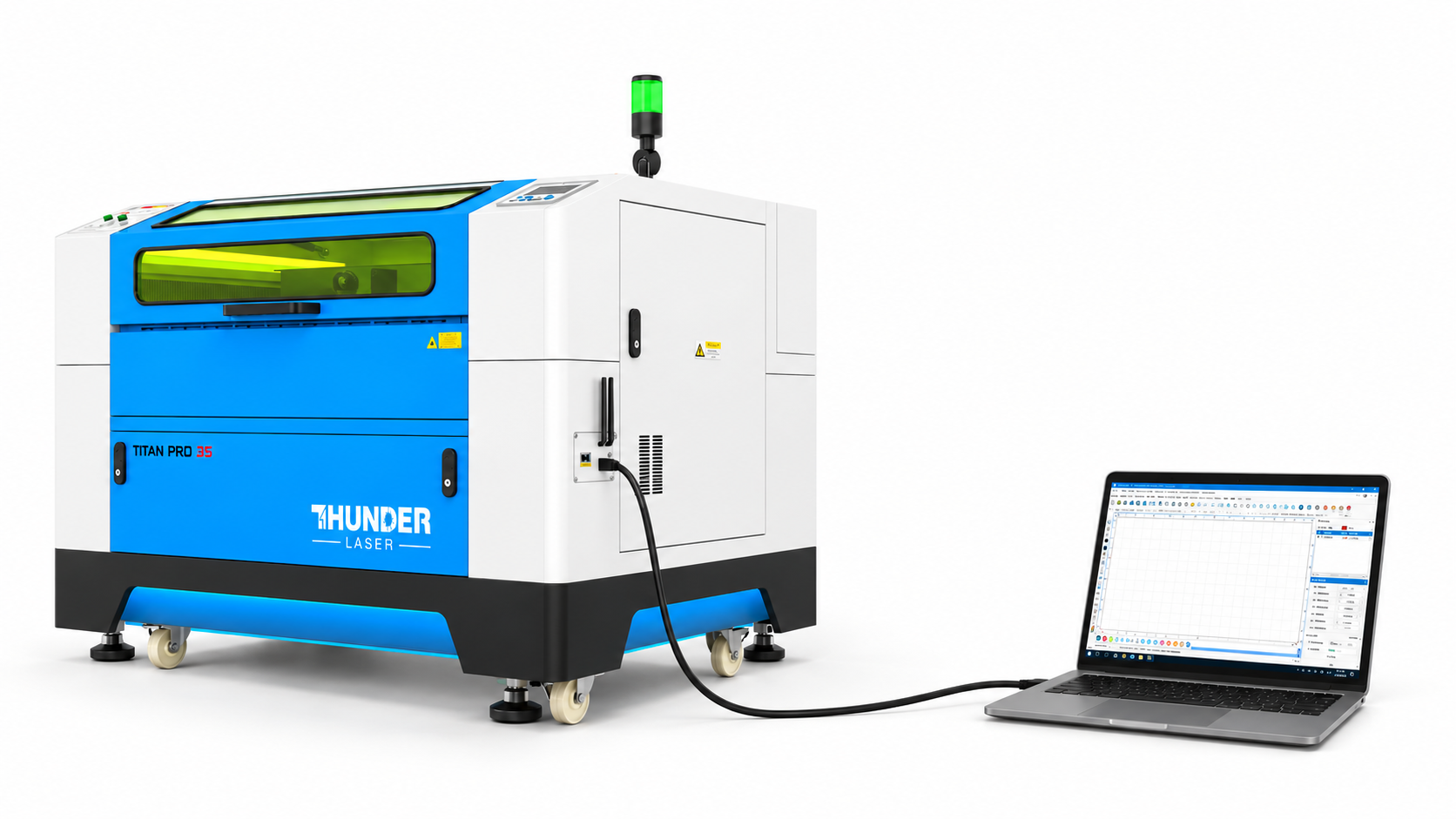
Make sure the machine is powered on and in standby mode.
Connect the machine to the Windows computer using a USB 3.0 cable.
Step 2 – Check the Device in Device Manager
Open Device Manager in Windows.
Find the Other devices and check whether one of the following devices appears:
- Unknown device
- USB Download Gadget
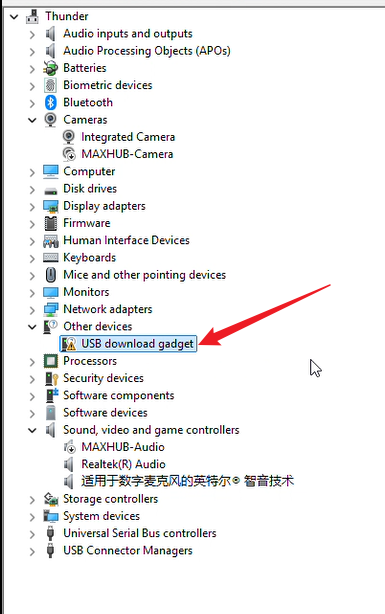
If the device appears, proceed to Step 4 to install the driver.
If the device does not appear, continue with Step 3.
Step 3 – Manually Enter Download Mode
If the Unknown device / USB Download Gadget is not detected in Device Manager:
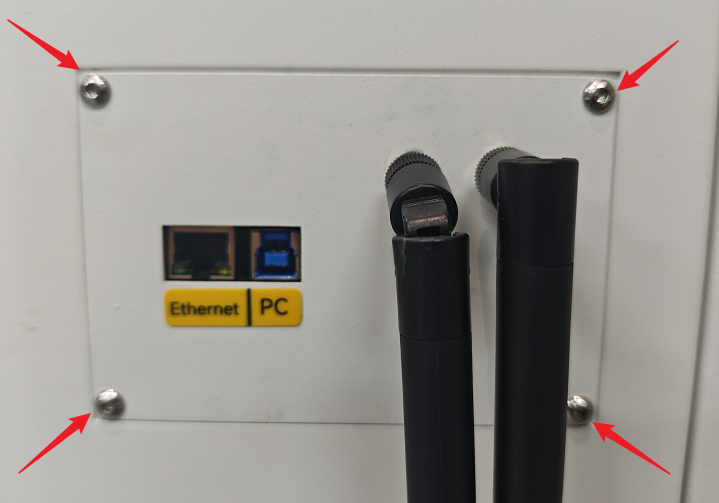
- Use a 2.5 mm Allen wrench to remove the screws securing the Wi-Fi board.
- Turn off the machine.
- Locate the black button indicated in the image below.
Note: To make it easier to press the black button, the orientation of the black button on newer Wi-Fi boards will be changed to face upward. Please follow the appropriate procedure based on the version of the Wi-Fi board installed in your machine.
Version 1 | Version 2 |
|
|
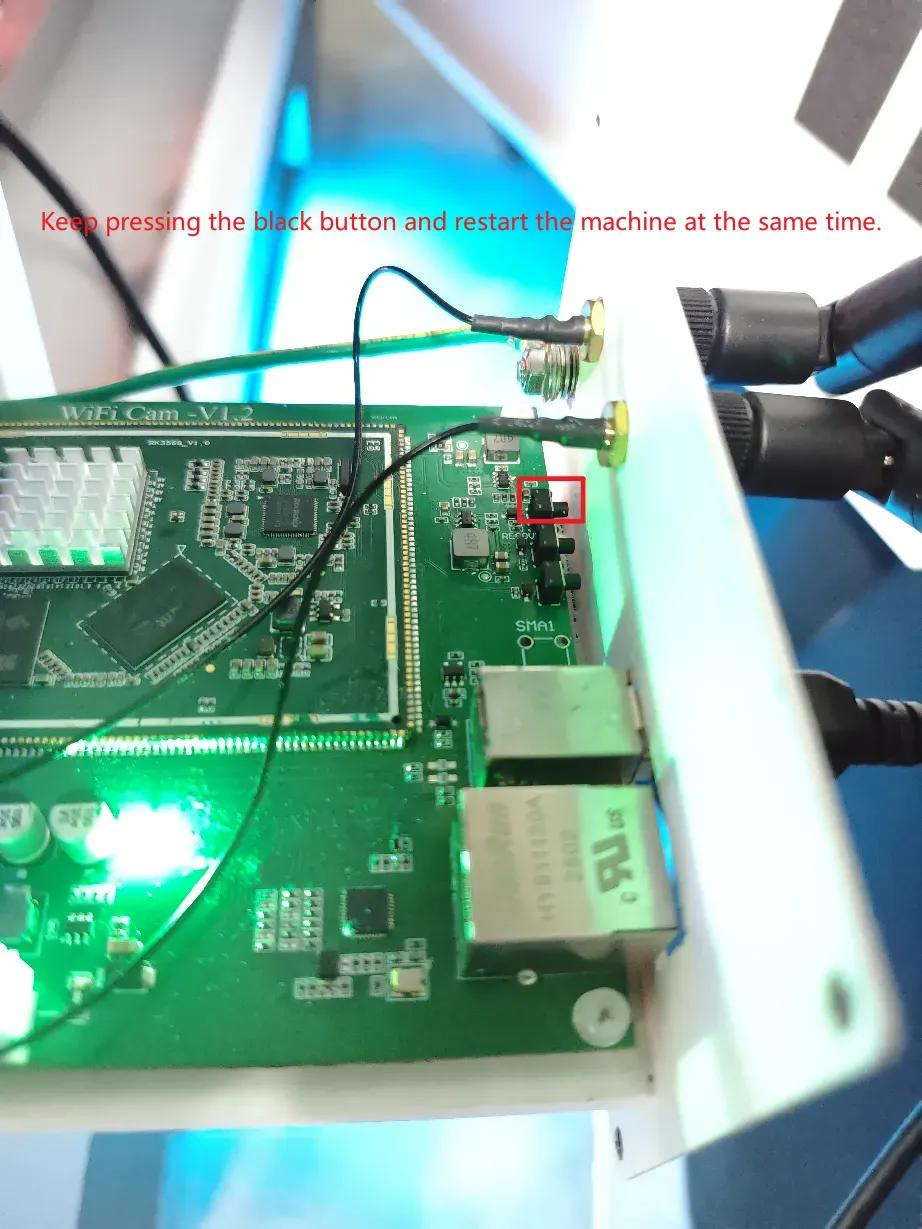
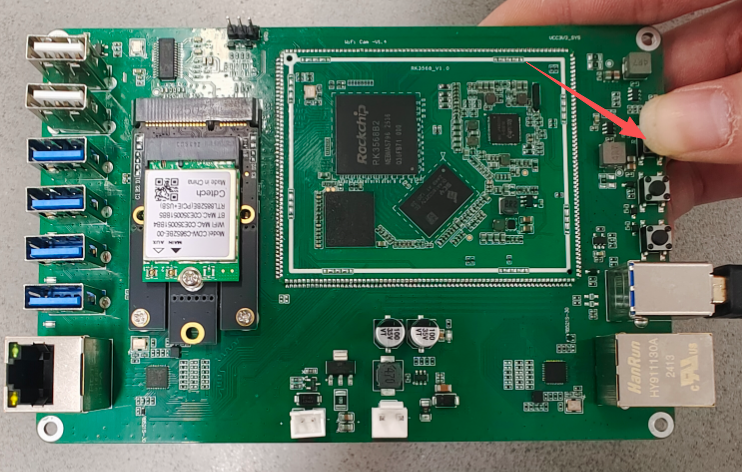
- Press and hold the black button. While continuing to hold the button, turn on the machine.
- Check Device Manager → Other devices again.
An Unknown device or USB Download Gadget should now appear.
Step 4 – Install the Driver
In Device Manager, right-click the detected Unknown device / USB Download Gadget and select:
Update driver > Browse my computer for driver software
Click Browse and select this folder: DriverAssitant_v5.1.1
Then click Next to install the driver.
Step 5 – Confirm the Driver Installation
After the driver is successfully installed, check Device Manager again.
The device should now appear as: Rockusb Device
If Rockusb Device is displayed correctly, continue to the next step.
Step 6 – Open RKDevTool
Open the folder: RKDevTool_Release_v2.84
Locate RKDevTool and launch it. Check the device status displayed at the bottom of the software window. If the software successfully detects the Wi-Fi board(“发现一个 LOADER 设备“ is displayed), continue to Step 8.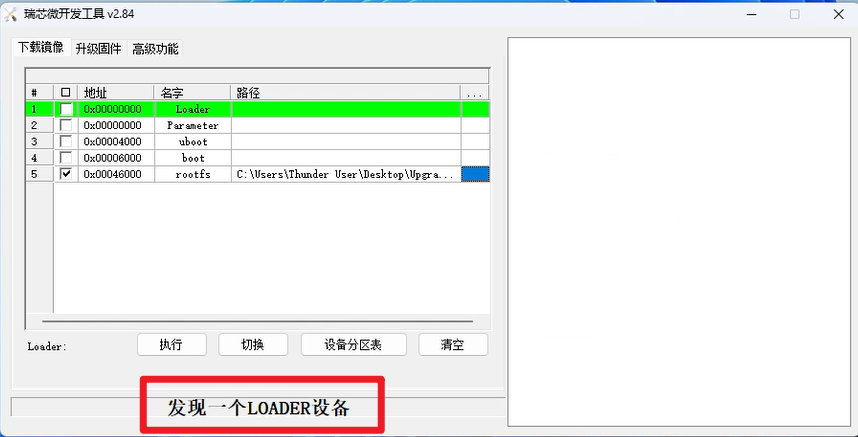
If it displays: 没有发现设备, this means: Do Not Find Device. Continue with Step 7.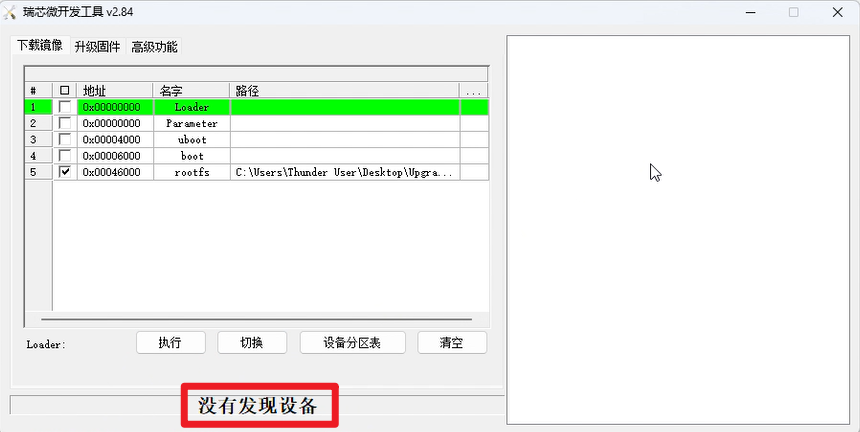
Step 7 – Reconnect the Wi-Fi Board if No Device Is Found
If RKDevTool displays “没有发现设备” (Do Not Find Device):
- Disconnect the USB cable from the machine and disconnect the 24V signal cable from the Wi-Fi board.
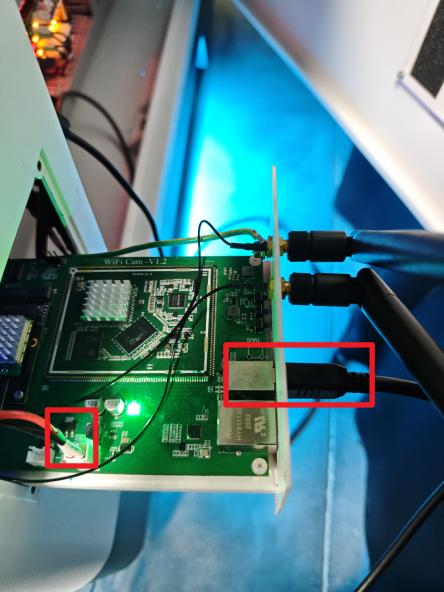
- Press and hold the previously mentioned black button.
- While holding the button, reconnect the USB cable first.
- Then reconnect the 24V signal cable.
Note: Follow the reconnection order exactly:
Hold black button → Connect USB → Connect 24V cable
Do not release the button before reconnecting the cables.
- Check RKDevTool again.
The software should now display: 发现一个 LOADER 设备, this means: Find A LOADER Device
Step 8 – Start the Firmware Update
In RKDevTool, open the Download Image (下载镜像) interface.
Note: Make sure 0x00046000 is selected and that the correct Wi-Fi board firmware file has been loaded before starting the update.
1. Locate and check "0x00046000", then click the white box on the right side of the corresponding row.
2. Select the downloaded firmware file.
3. Click execute (执行).
4. Begin the firmware update.
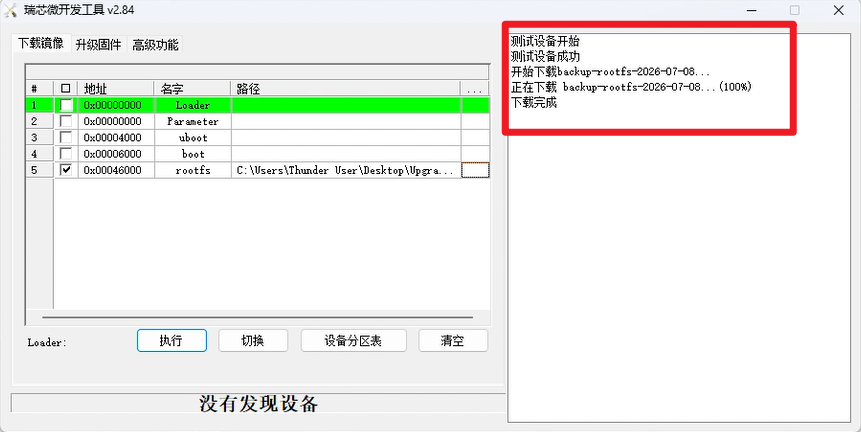
During the update, the software will display the download progress, for example:
正在下载 backup-rootfs-2025-09-11...(66%)
Wait for the update to complete.
Interrupting the update process may cause the Wi-Fi board firmware update to fail.
Step 9 – Confirm the Update Is Complete
Continue waiting until the progress reaches:
正在下载 backup-rootfs-2025-09-11...(100%)
When the progress reaches 100%, the firmware update is complete.
Still need help?
For specific technical questions or help requests, please open a Ticket with picture or video, so our Support team can assist you ASAP.
For the information provided in the ticket, please refer to this link:
Help Tech Support Troubleshoot Faster
End.