The Automatic Door on the Aurora 8 Pro(2.0) Won't Close
Problem Description
After switching on the machine, the automatic door switch is pressed, but the front door fails to close. Simultaneously, the device emits two beeps, and the sensor's indicator light does not function as expected.
Reason
This issue can have one of the following causes:
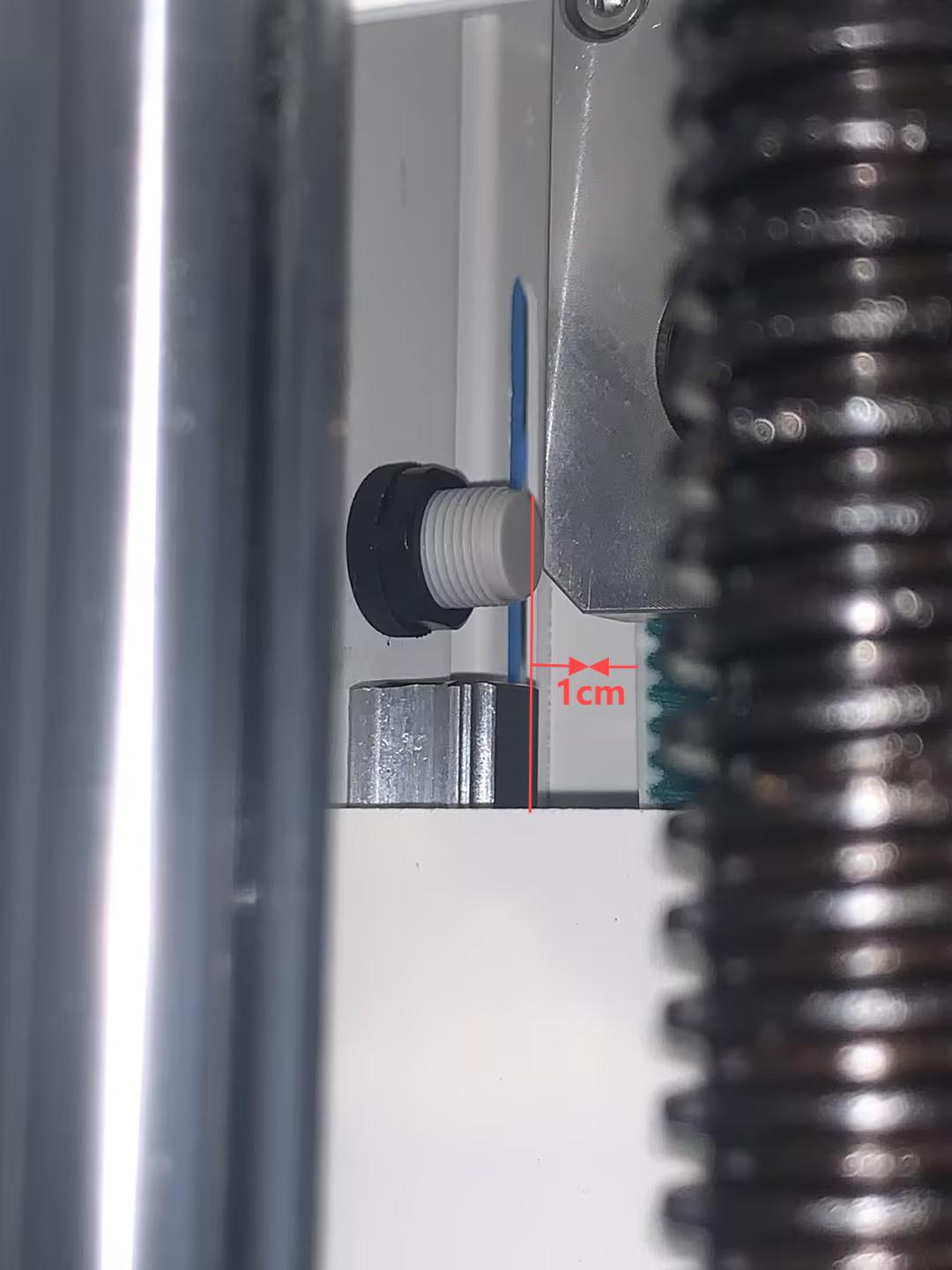
- The distance from the bottom of the sensor to the belt is incorrect. (This only applies to the new-type sensor)
- The sensitivity of the sensor is set too high, or the threshold is set too low.
- The autofocus board or the sensor is broken.

Tools required
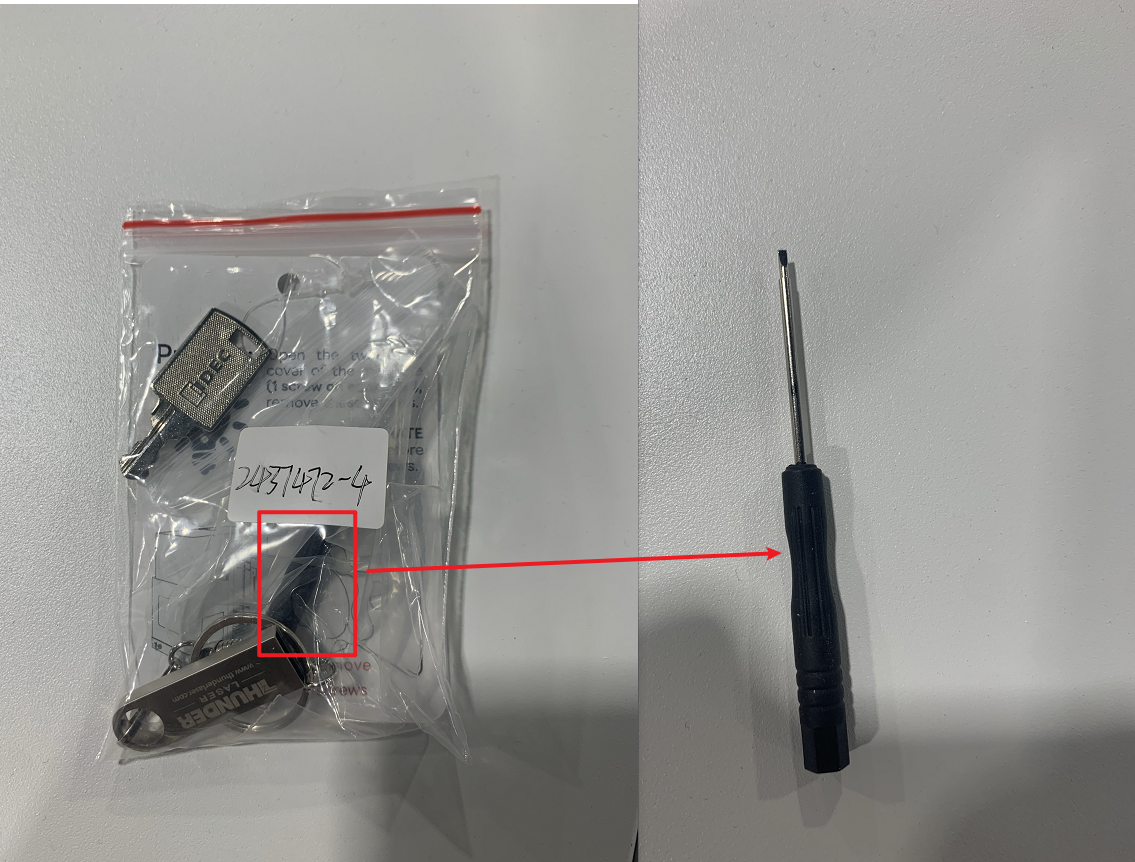
- A Phillips screwdriver
1. Identify Your Sensor Type
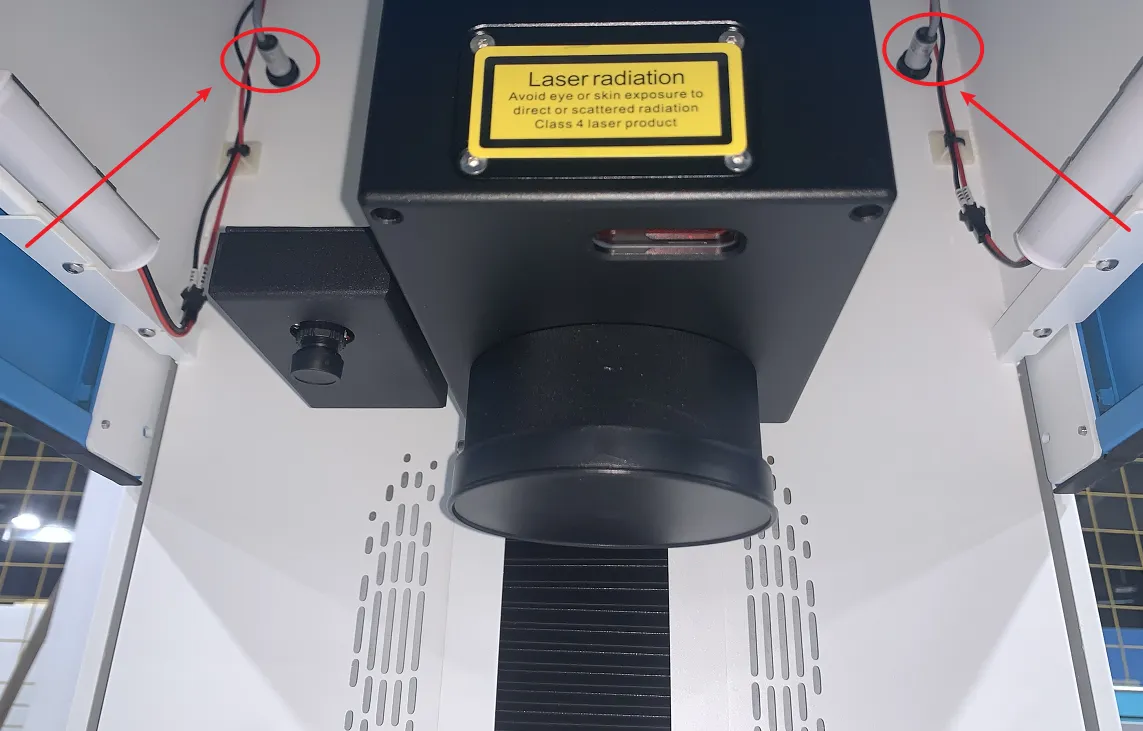
There are two types of door-closing sensors. Please check the indicator lights with the machine powered on first, and identify your sensor type, since fault symptoms and troubleshooting procedures are different for each type.
Sensor Type | Location | Normal indicator lights |
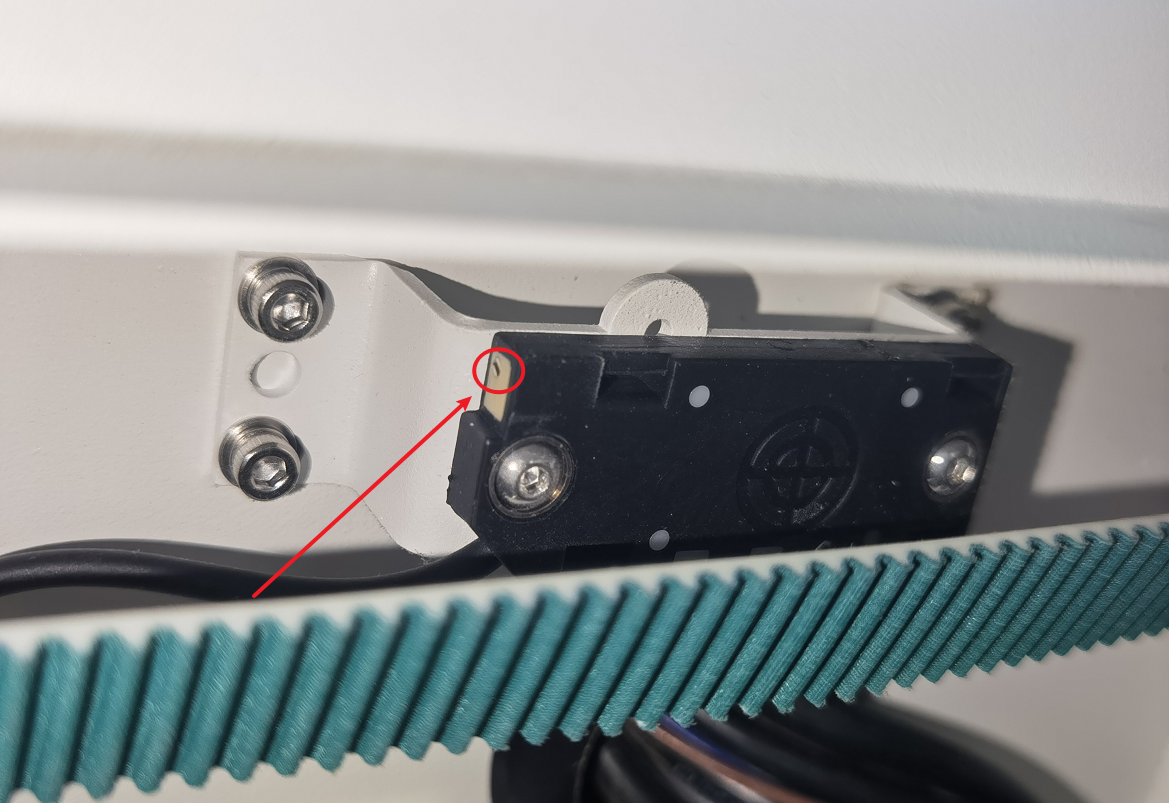
Old-Type Sensors | Mounted on the machine’s inner left and right sides, above the belts. Access via the side doors. | Under normal conditions, the indicator lights show both yellow and green colors. 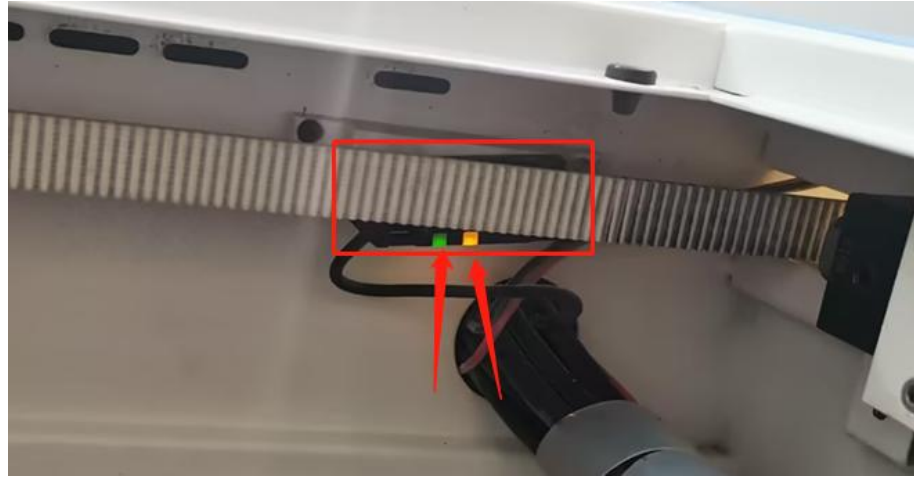 |
New-Type Sensors | Mounted on both sides of the machine front. Access via the front door. | Under normal conditions, the indicator lights remain off. 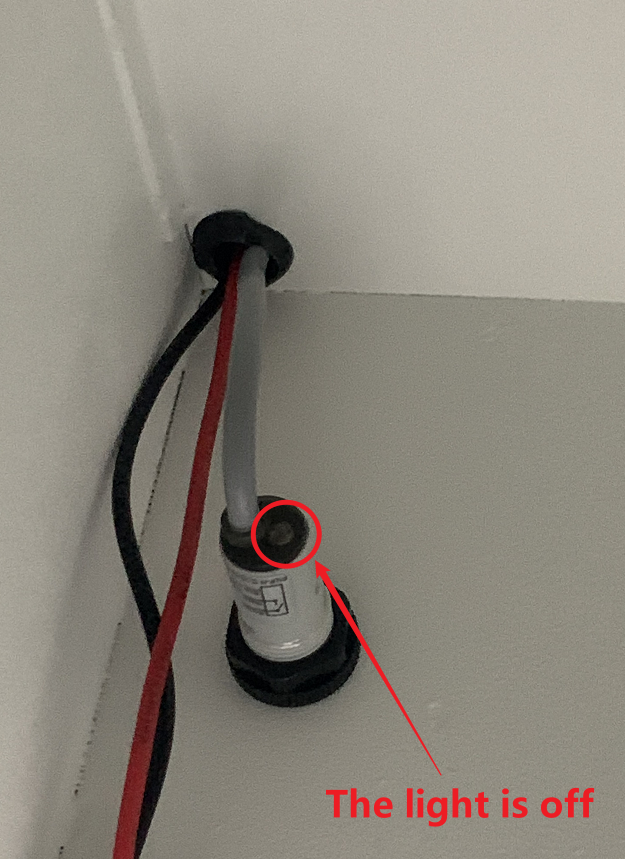 |
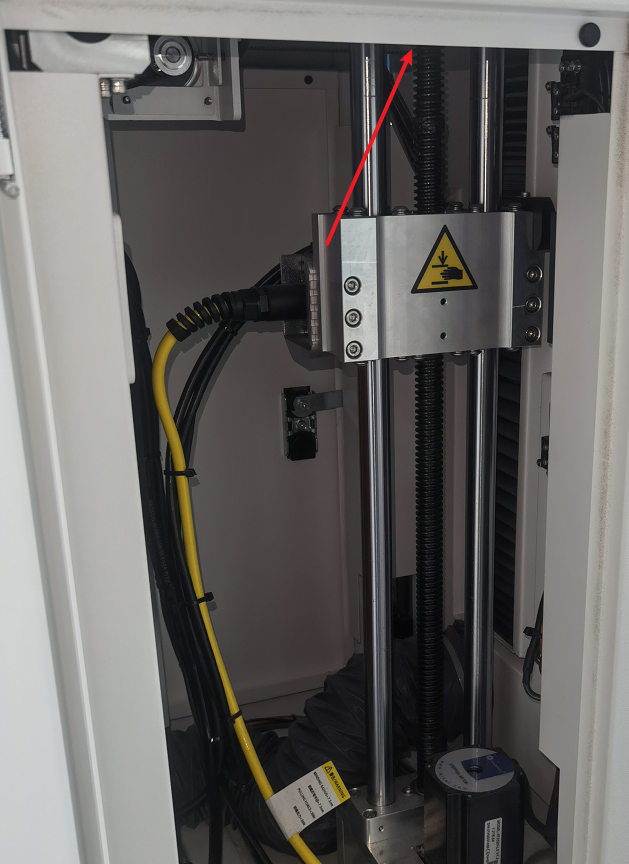
2. Old-Type Sensor: Troubleshooting
2.1. Check the Sensor Sensitivity Setting
If the sensitivity setting of the sensor is too high, or the threshold setting is too low, it will cause the automatic door to fail to close properly.
Step 1: Locate the faulty sensor hole | Step 2: Adjust the sensor sensitivity |
Open the left or right side doors of the machine to locate the faulty sensor hole.
| Insert the supplied screwdriver into the sensor hole and turn it to adjust the sensitivity. Move the belt manually up and down at the same time. Stop when the indicator light shows yellow and green. |
Step 3: Check the test results | Step 4: Test the automatic door |
| Repeat the door-closing test. Press the automatic door button, then place a hard object in the door path to verify the anti-pinch function. Check whether the door rebounds up. |
If the indicator light does not show yellow and green, proceed to Section 2.2.
2.2. Check the Autofocus Board
If the indicator light is completely off (neither yellow nor green), or the issue remains after adjusting sensitivity, check the autofocus board directly.
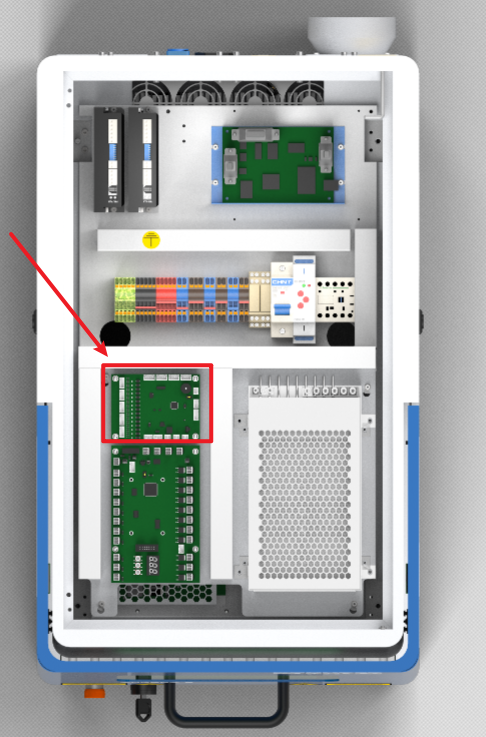
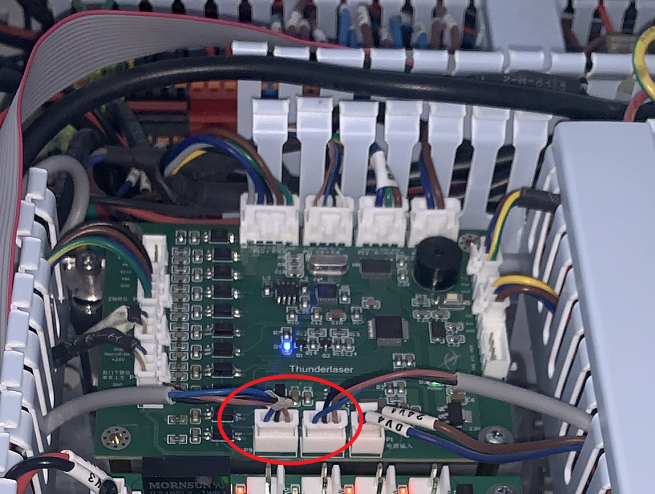
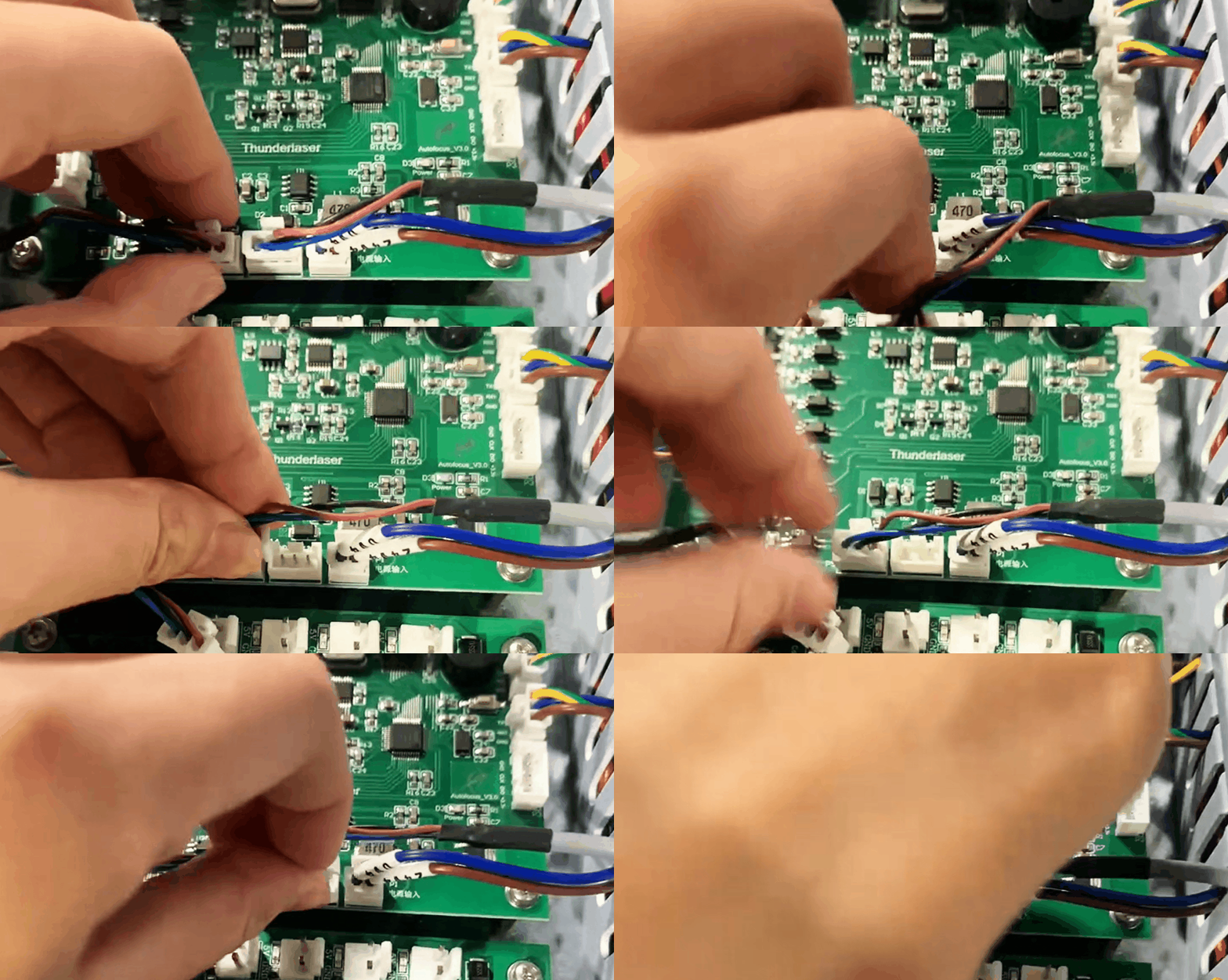
Step 1: Locate the autofocus board and wiring terminals. | Step 2: Swap the terminals to verify the problem. |
Open the top cover door of the machine to locate the autofocus board and wiring terminals on the circuit board above the machine.
|
3. New-Type Sensor: Troubleshooting
3.1. Check the Sensor-to-Belt Distance
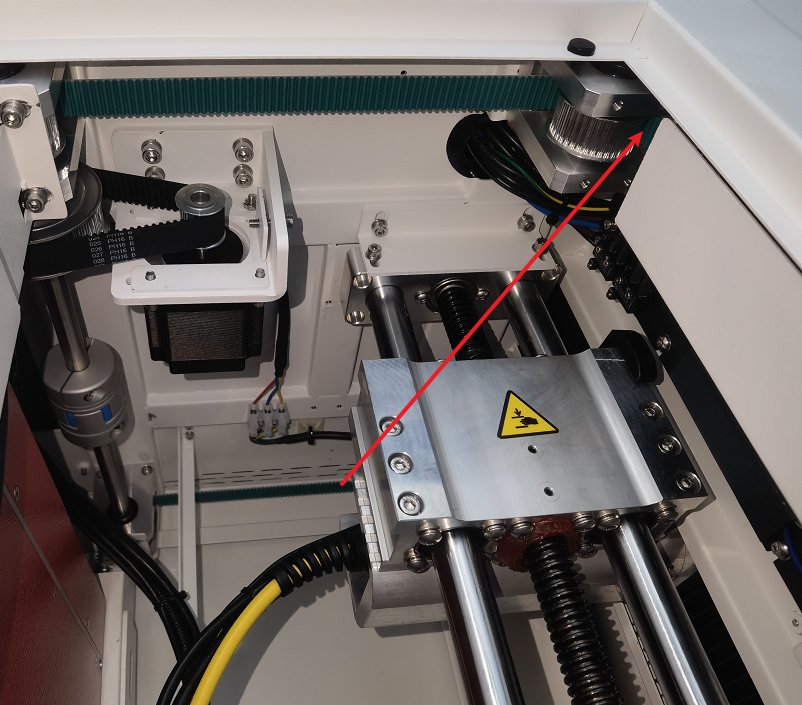
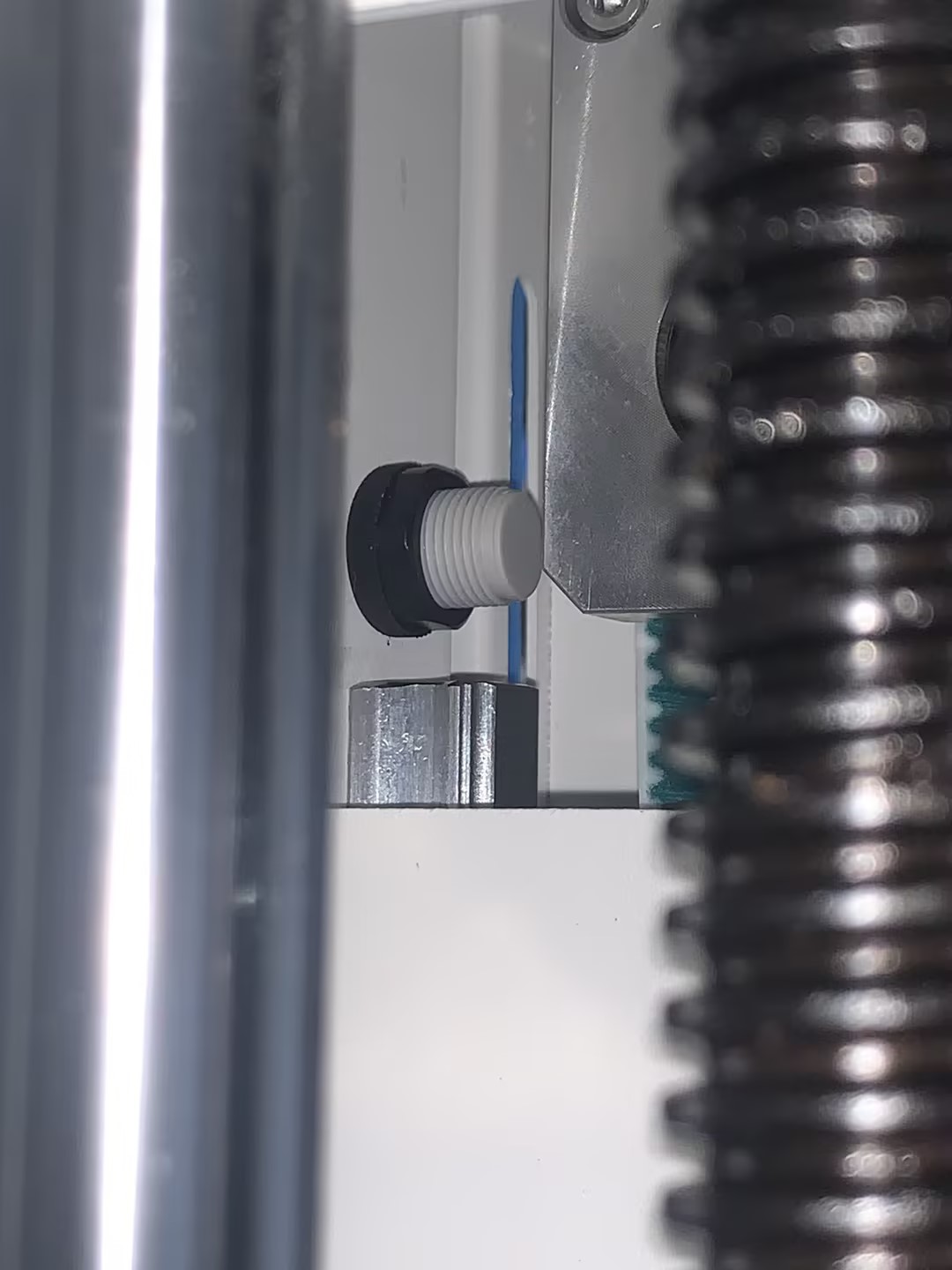
Step 1: Locate the faulty sensor. | Step 2: Check the sensor-to-belt distance |
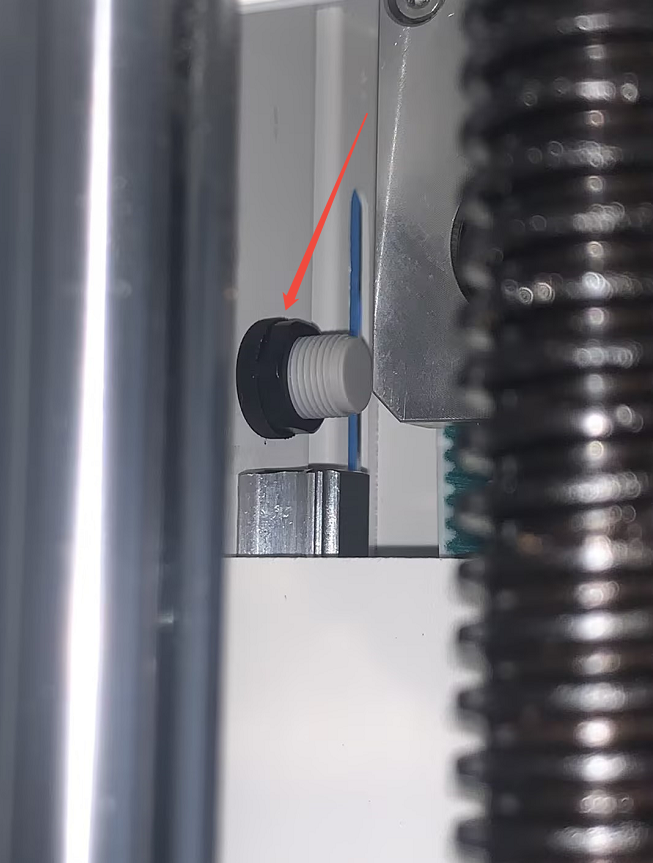
Open the left or right side doors to locate the back of the faulty sensor.
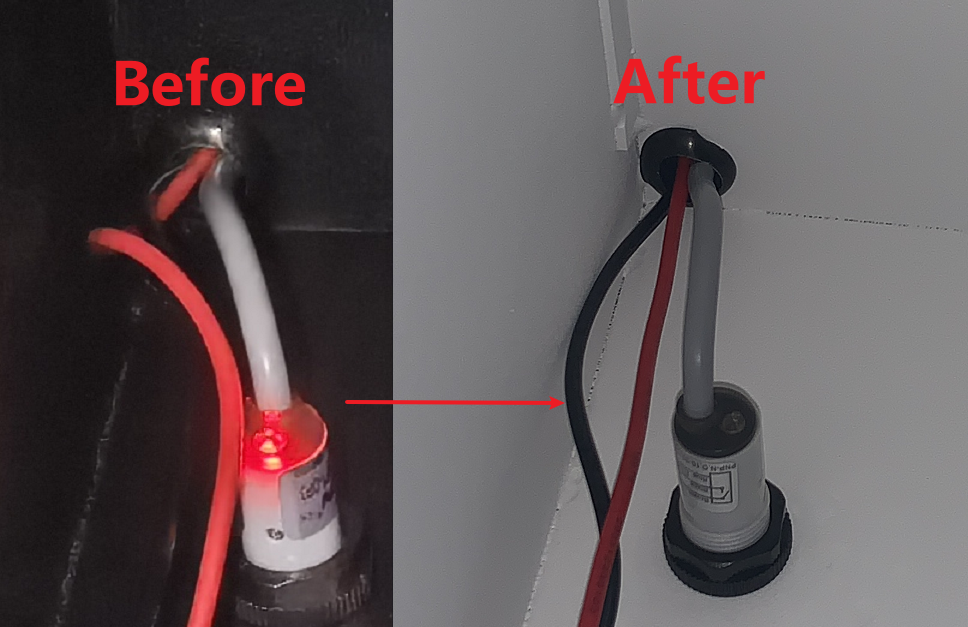
| Check that the distance from the bottom of the sensor to the belt is 1 cm. If the 1 cm distance is not available, remove the nut on the back of the sensor, adjust the distance from the sensor to the belt to 1 cm, and then rescrew the nut onto the sensor. |
Step 3: Check the test results | Step 4: Test the automatic door |
Return to the front of the machine to check the indicator light: it should change from red to off. | Repeat the door-closing test. Press the automatic door button, then place a hard object in the door path to verify the anti-pinch function. Check whether the door rebounds upward. |
3.2. Check the Sensor Sensitivity Setting
If the sensitivity setting of the sensor is too high, or the threshold setting is too low, it will cause the automatic door to fail to close properly.
Step 1: Locate the faulty sensor hole | Step 2: Adjust the sensor sensitivity |
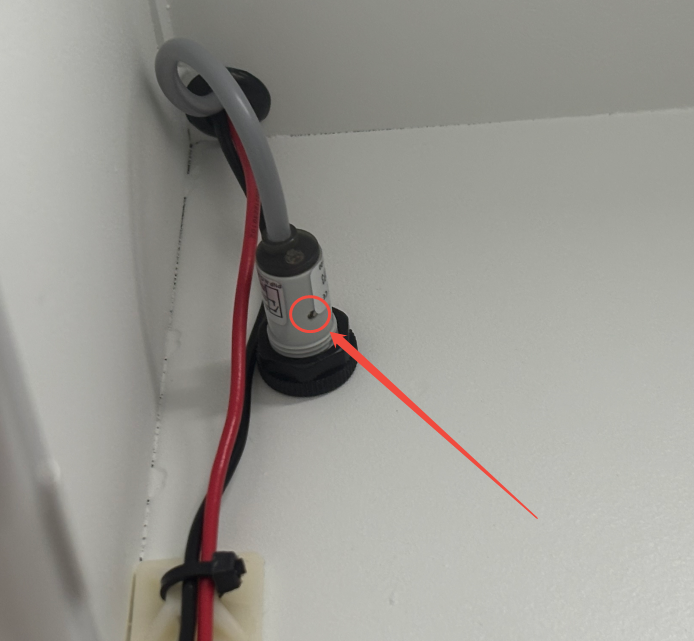
Open the front door of the machine to locate the faulty sensor hole.
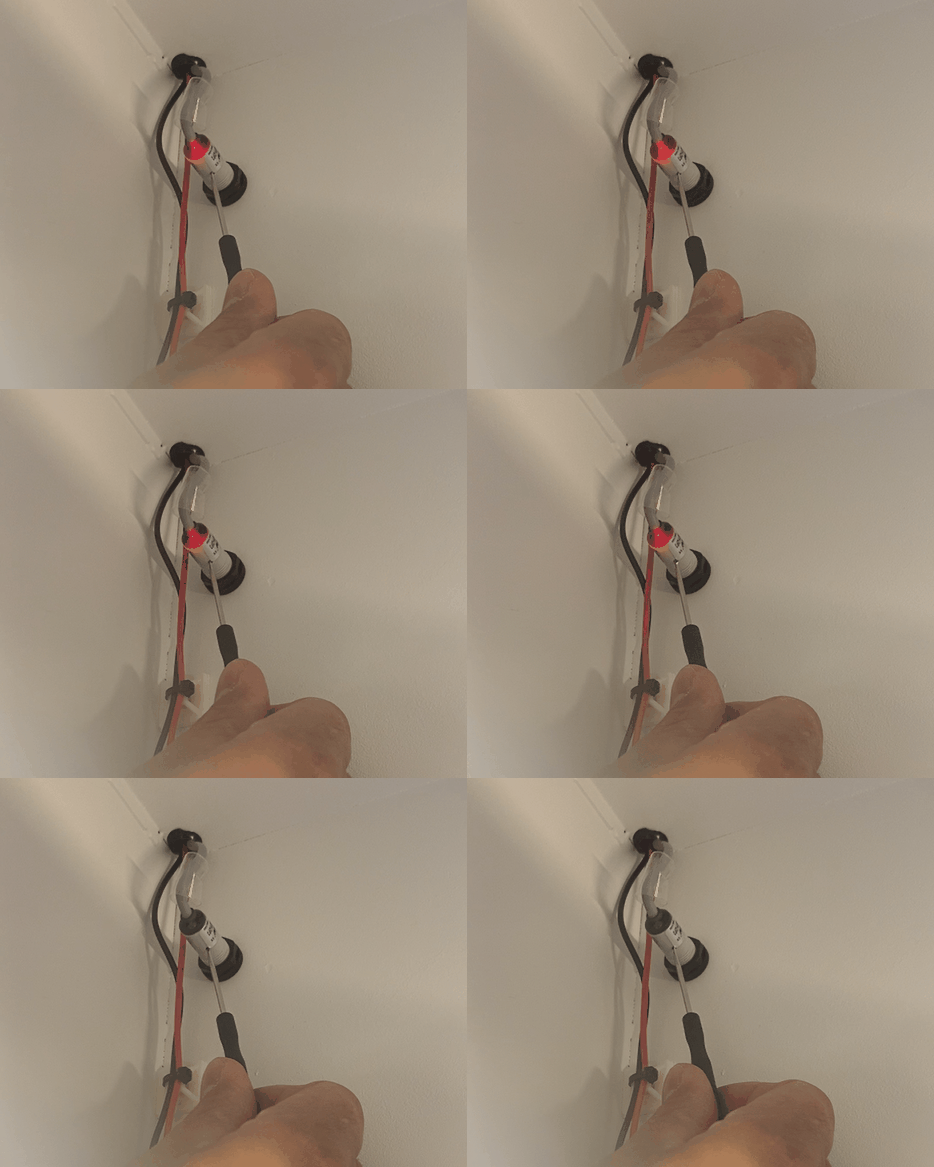
| Insert the supplied screwdriver into the sensor hole and turn it to adjust the sensitivity until the indicator light changes from red to off.
|
Step 3: Check the test results | Step 4: Test the automatic door |
The indicator light should remain off. | Repeat the door-closing test. Press the automatic door button, then place a hard object in the door path to verify the anti-pinch function. Check whether the door rebounds upward. |
If the indicator light remains red, proceed to Section 3.3.
3.3. Check the Autofocus Board
After completing Section 3.1 or 3.2, if the indicator light is always red, check the autofocus board directly.
Step 1: Locate the autofocus board and wiring terminals. | Step 2: Swap the terminals to verify the problem. |
Open the top cover door of the machine to locate the autofocus board and wiring terminals on the circuit board above the machine.
|
Still need help?
For specific technical questions or help requests, please open a Ticket with picture or video, so our Support team can assist you ASAP.
For the information provided in the ticket, please refer to this link: