Screen shows PWM Alarm: Troubleshooting the cause
Preface: This article covers some things to check if you get the PWM alarm on the screen
PWM alarm message:
The PWM is the signal from the controller in the machine to the fanboard that goes to the laser tube to tell the tube hot much power to output. In general it is a 0-5v signal that relates to the min and max power of the tube...say 1 to 99%.
How to fix:
Before we dive into the troubleshooting steps, lets get familiar with the components involved.
Locate the fan board:
Located in the back of the machine, near the laser tube. It is the small green printed circuit board with a bunch of white connectors and wires running to it. It will have many red lights (Red is ok..not indicating an issue).
Understanding the Fan board Layout:
Red box are the K-ON and K-OK/L-ON connectors, the red arrow is pointing to the the PWM signal input from the DSP. There are indicating LEDS above the connectors that tell the status.
Locate the TL Timer:
The TL timer is on the left hand side of the machine, behind the door. It is the large green printed circuit board with a bunch of white connectors and wires running to it. It will have many red lights (Red is ok..not indicating an issue).
Understanding the Fan board Layout:
In the top right and at the bottom, the K-OK, K-On and L-On wires from the fan board are connected to the TL Timer, highlighted in the red square
K-OK (In-11) | K-On and L-On |
Troubleshooting Steps:
Power up the machine and bypass the doors so that we can view the fan control board in the desired state.
To bypass the doors, locate the Door board that is integrated to the TL timer and press the button shown:
Step 1: Check if K-Ok/L-ON, and K-ON connectors on the Fan board are securely connected.
Step 2: Check if K-OK/IN 11 connector on the TL board is securely connected.
Step 3: Check if these two ports on the TL board are securely connected for the shutter
Conclusion: If the above three steps check out, the LEDs on the Fan control board should light up as shown below.
Once done, you can undo the door bypass by pressing the Door Bypass Button again:
Workarounds:
Option 1:

This option will limit your machine a Class II machine. If you require a Class I machine, do not do this work around
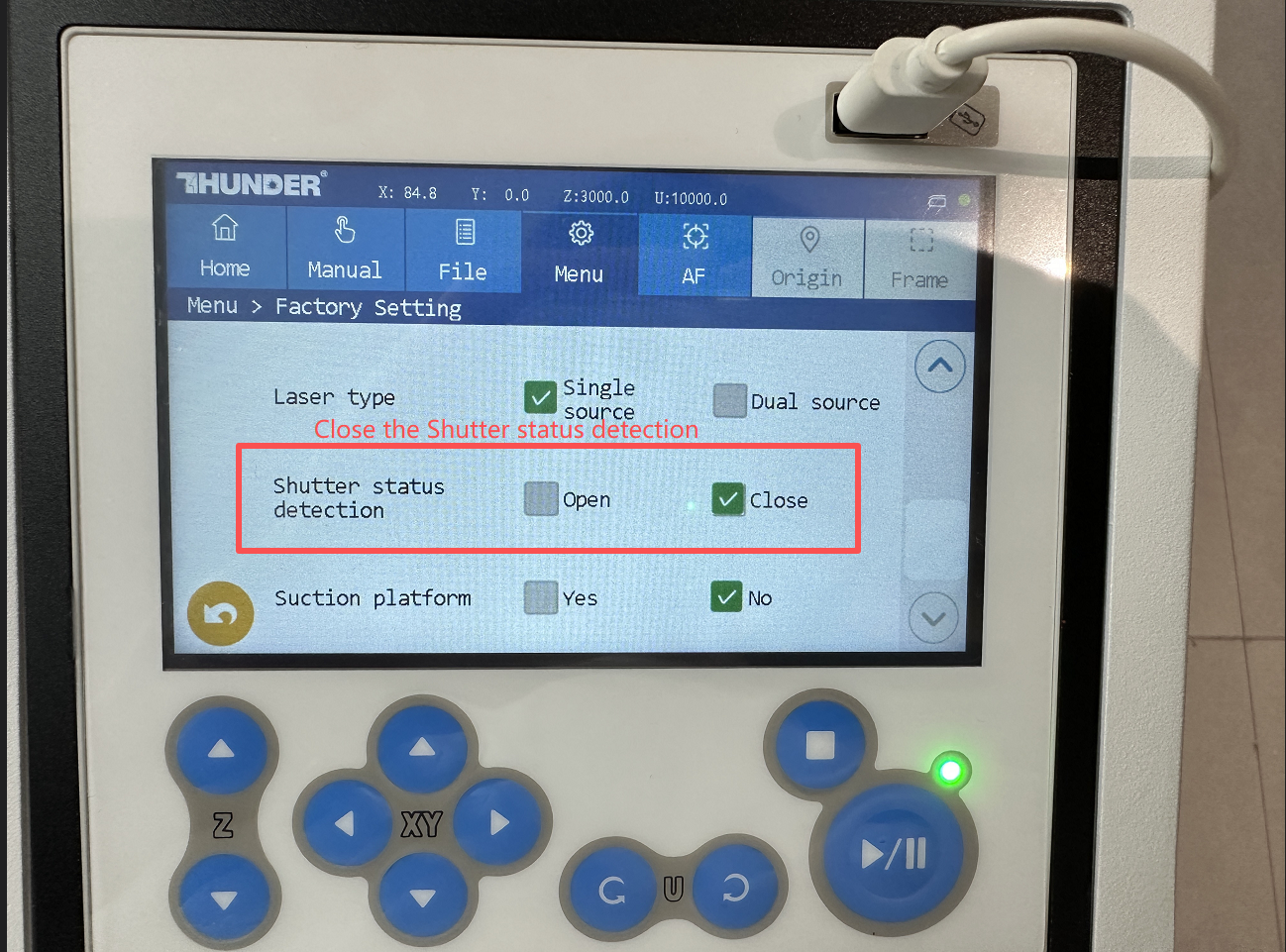
Login to the Factory Settings option under your Menu with the password CC8888
Scroll down to the Shutter option and Selected the Closed Option
Option 2:
Only works on Class II machines that allow motion with a Door open
Before powering up your machine, open up the left hand side door. Power up the machine, allow it to complete the homing routine and then close the door.
Still need help?
For specific technical questions or help requests, please open a Ticket with picture or video, so our Support team can assist you ASAP.
For the information provided in the ticket, please refer to this link:
Help Tech Support Troubleshoot Faster
End.