How to upgrade the TiTan Pro firmware to support modifying the parameter of the Y driver
How to upgrade the TiTan Pro firmware to support modifying the parameter of the Y driver
 Preface: This article discusses the idea of upgrading the hardware and the firmware to the version that can be supported modifying the parameter of the Y axis driver.
Required Materials
RS232-to-RS485 Adapter Board Cable TL Timer Expansion Board cables
Program downloader
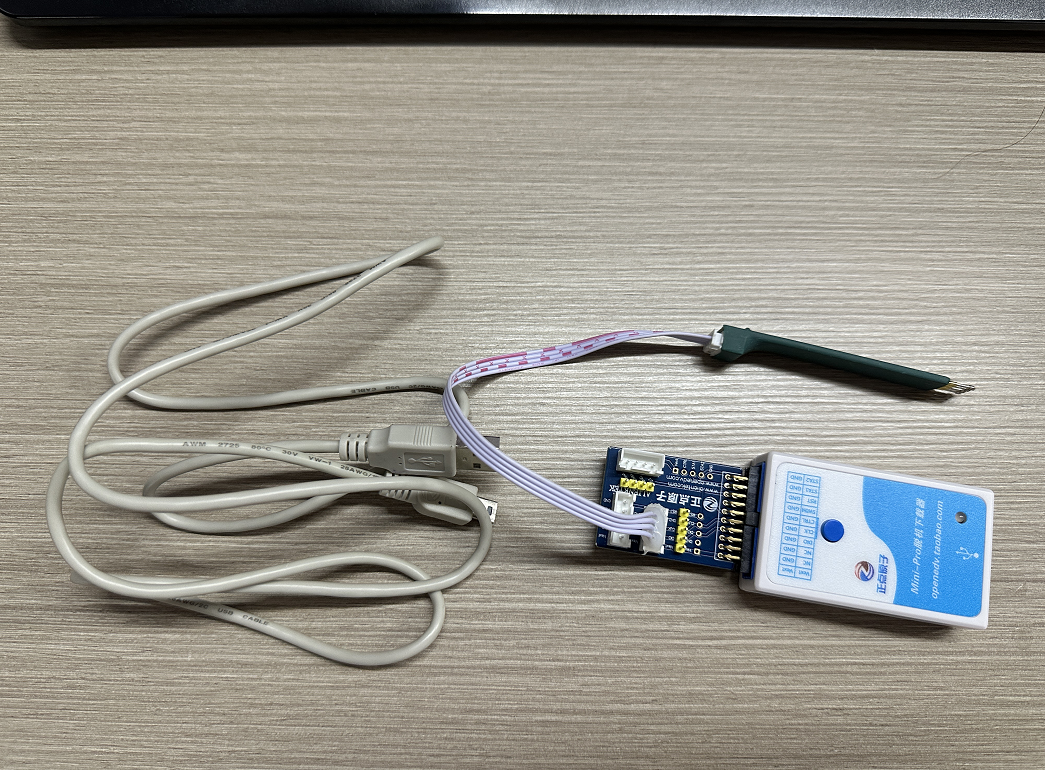
Hardware replaced
1. Replacement Steps for the RS232-to-RS485 Adapter Cable
Connect the Ethernet cable connector of the RS232-to-RS485 adapter cable to the In Port of the Y-axis driver.
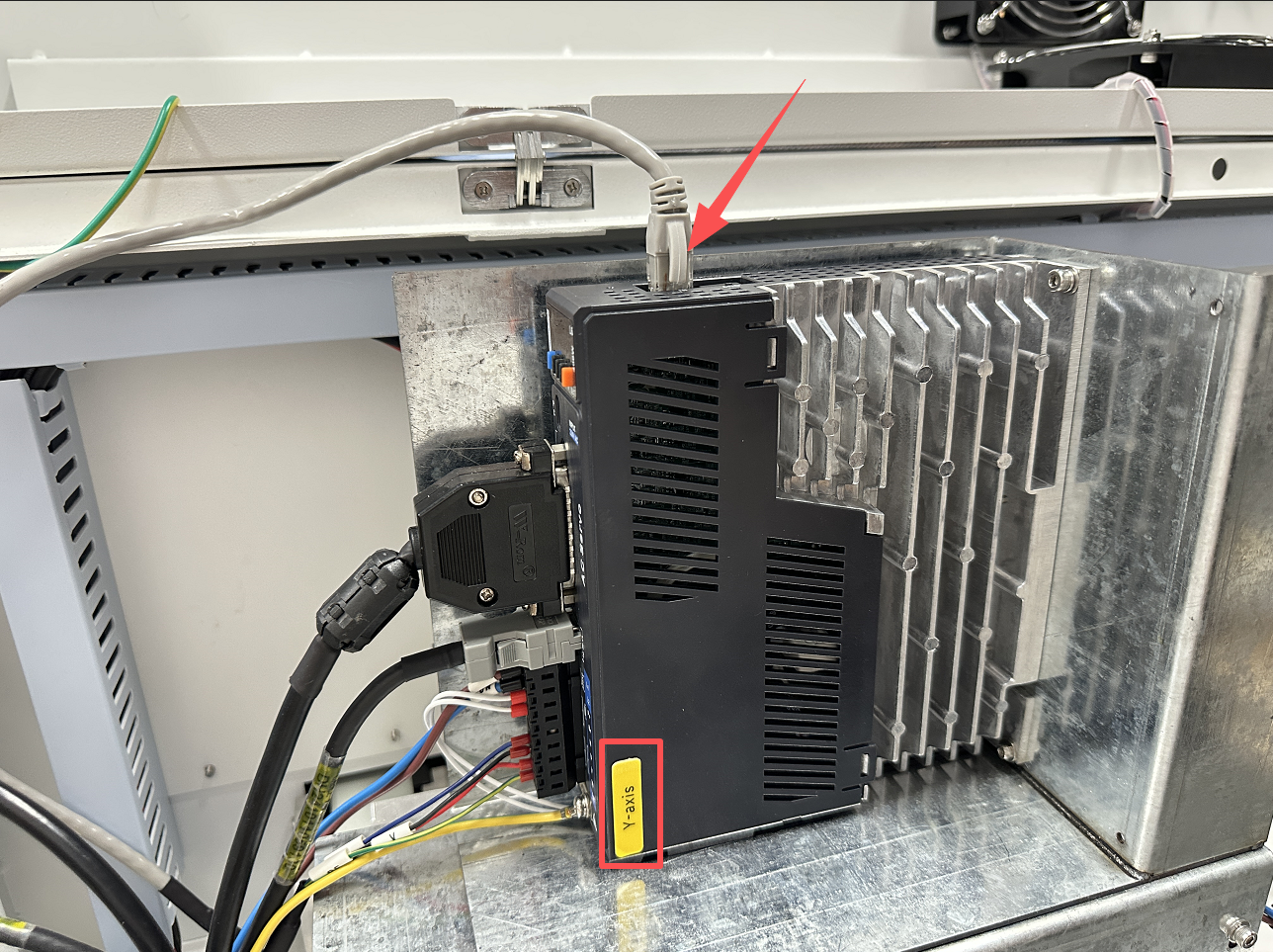
Connect the yellow&green wire of the RS232-to-RS485 adapter cable to the GRT port on the TL board, remove
the original cable; connect the blue wire to GND on the wiring bar, and the red wire to L on the wiring bar.
2. Replacement step for TL Expansion Board cables
Connect the four terminals on the left side of the cable to the TL Expansion Board, according to their colors (1–4).
Locate the Auto Focus Board at the rear-left side of the machine, and connect the 4-pin and 2-pin terminals one by one to the board, respectively.
Firmware Upgrade
1. Upgrade the HMI firmware and controller firmware.
Open RDWorks, and locate in the menu bar, go System setting > Controller > Upgrade HMI first > Upgrade Firmware second
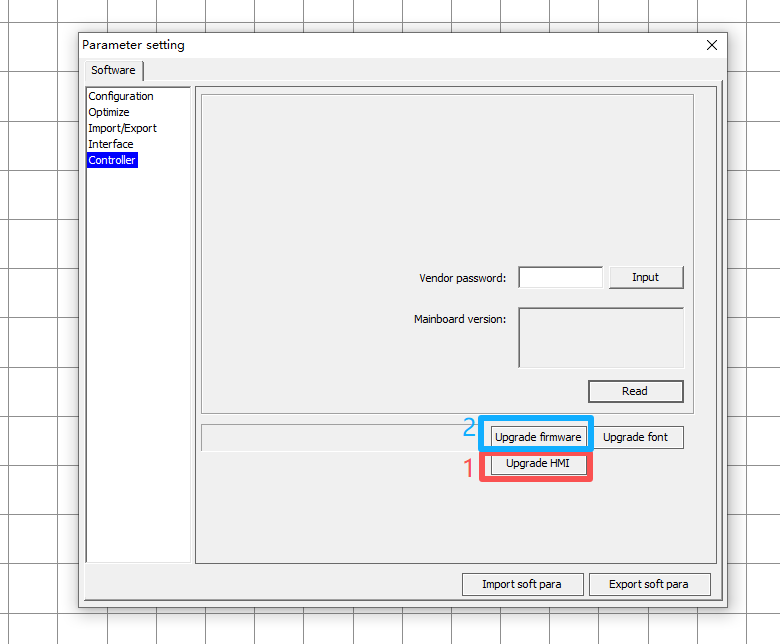
2. Upgrade the program of TL Timer Board and Auto Focus Board
TL Timer Board
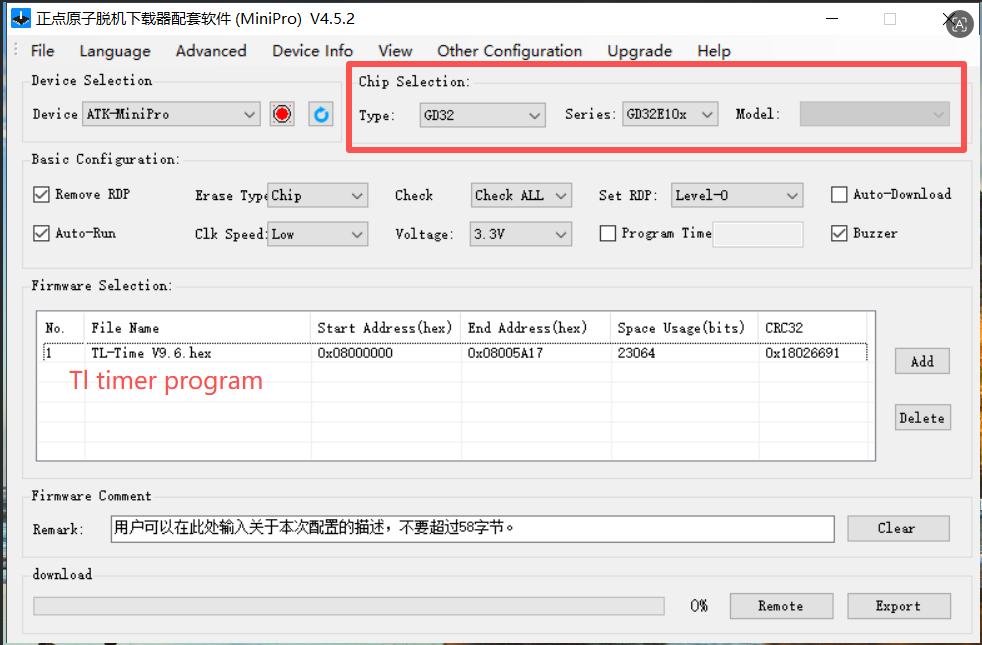
Note: Please pay attention to the pin orientation when upgrading to the TL Timer (align GND with GND).
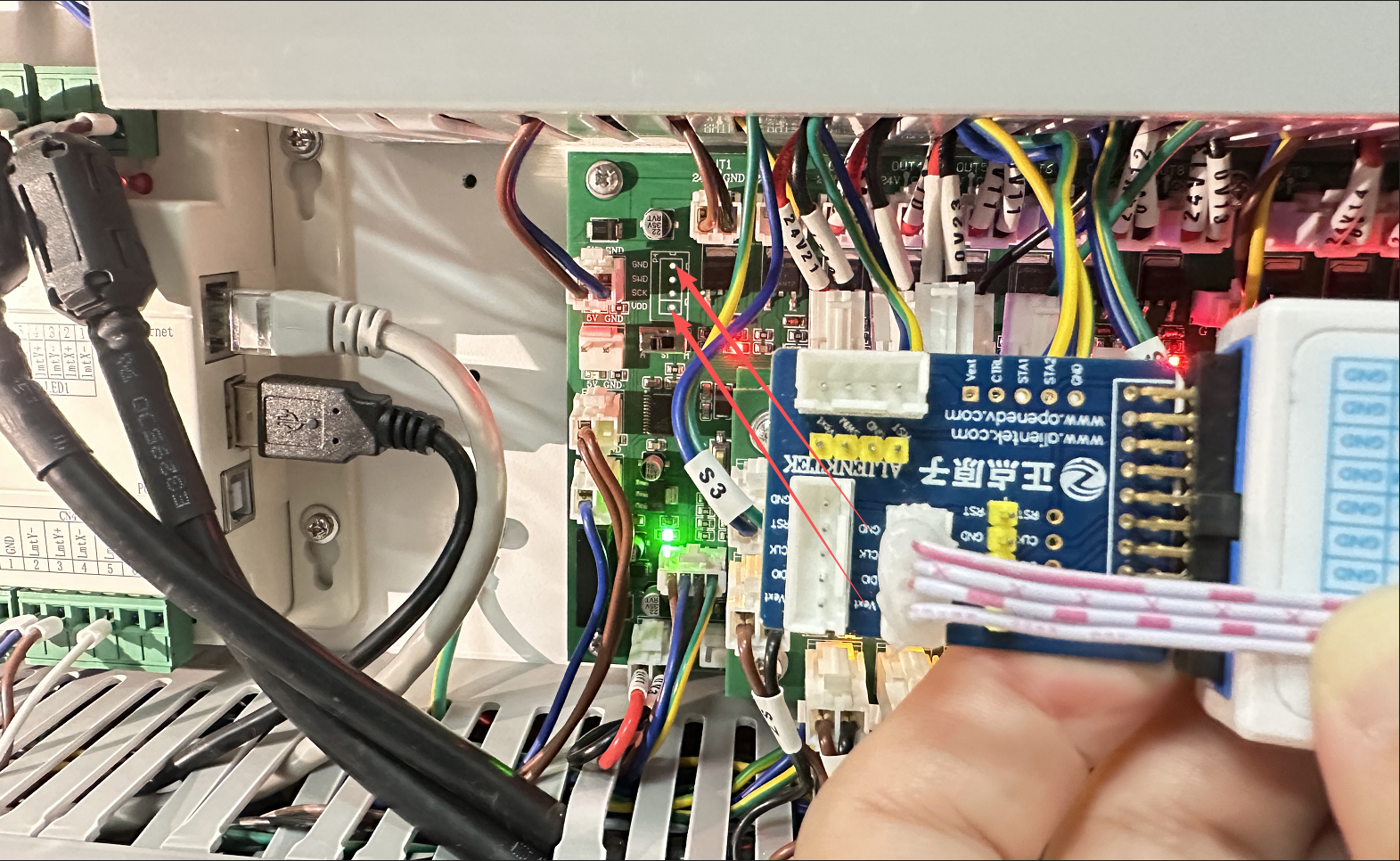
Auto Focus Board
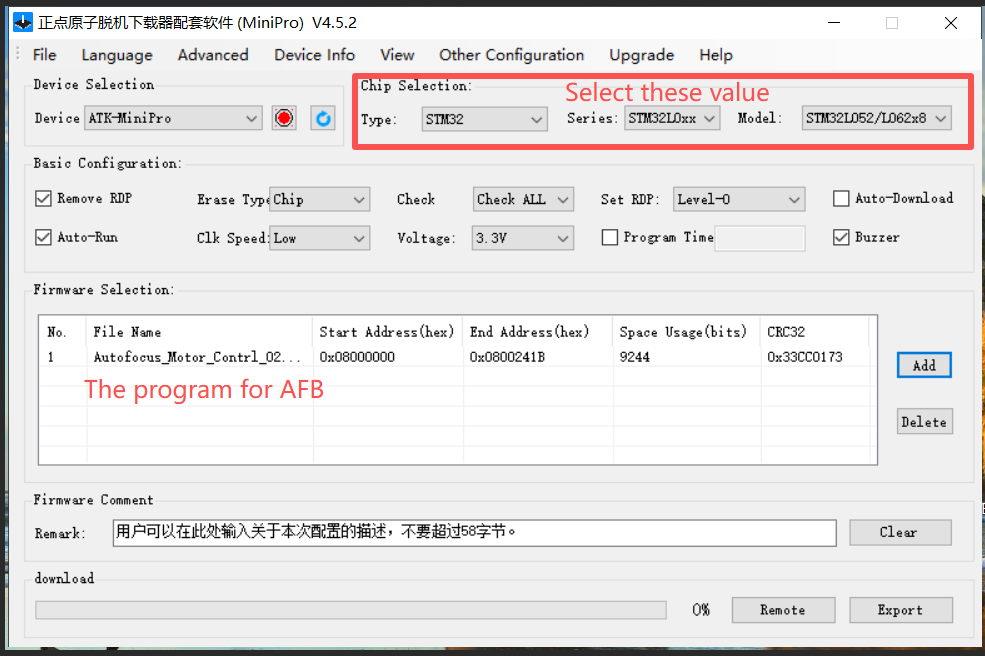
Auto Focus Board