How to Upgrade the Fiber Module Firmware
Preface
This guide provides detailed instructions on how to update the Fiber Module firmware.
Video showing the specific upgrade steps: How to Upgrade the Fiber Module Firmware
Firmware Update Software Download Path: Upgrade Fiber Module
Note: This upgrade procedure supports Windows computers only. Keep the machine powered on and idle during the upgrade.
Step-by-Step Upgrade Instructions
Step 1: Download and Extract the Upgrade Files
Download and extract the required files. Confirm that the package includes:
Documents Required | Picture |
|
|
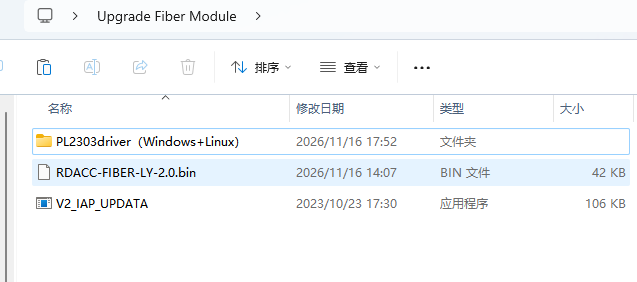
Step 2: Connect the Fiber Module to the Computer
Locate the Fiber Module's DB9-to-USB cable connected to the WiFi board. Unplug its USB connector from the WiFi board and connect it to your Windows computer.
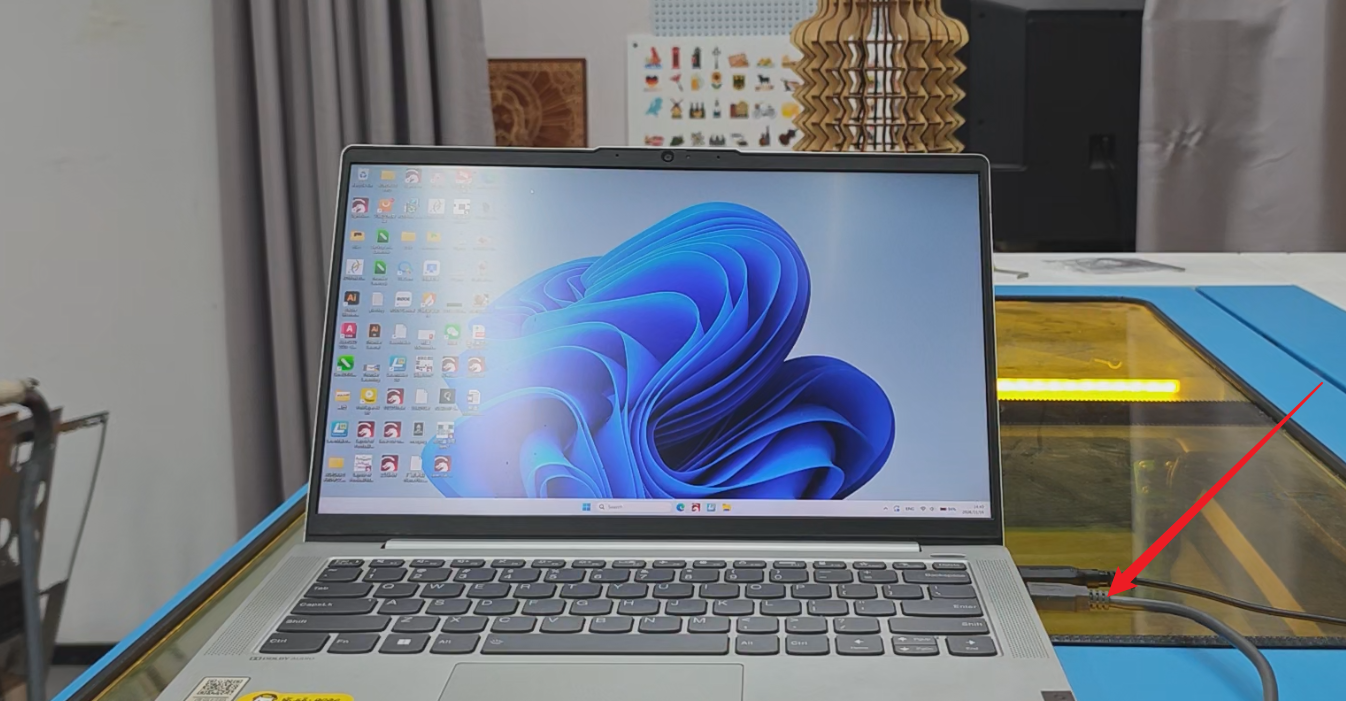
Note: Confirm that you have identified the correct cable before disconnecting it. Before starting the upgrade, make sure the machine is powered on and idle.
Step 3: Install the Driver
Open the extracted PL2303driver(Windows+Linux) folder.
Select the driver appropriate for your Windows version and follow the prompts to complete the installation.
Step 4: Identify the COM Port
Open Device Manager in Windows and expand Ports (COM & LPT).
Locate the corresponding serial device and note its COM port number, such as COM10.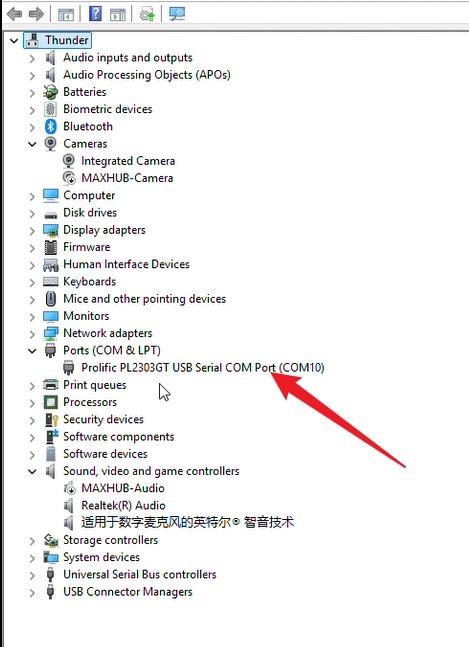
Step 5: Open the Upgrade Application and Select the Firmware
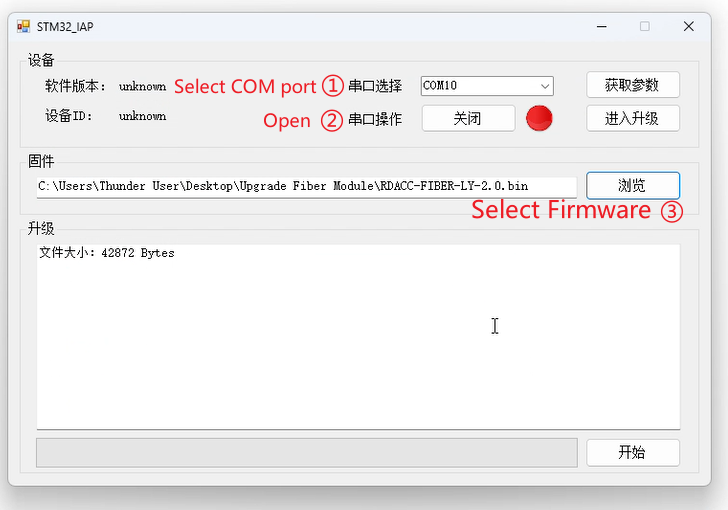
Double-click V2_IAP_UPDATA.exe, then click Version 1.0 in the lower-right corner of the window to enter the upgrade interface.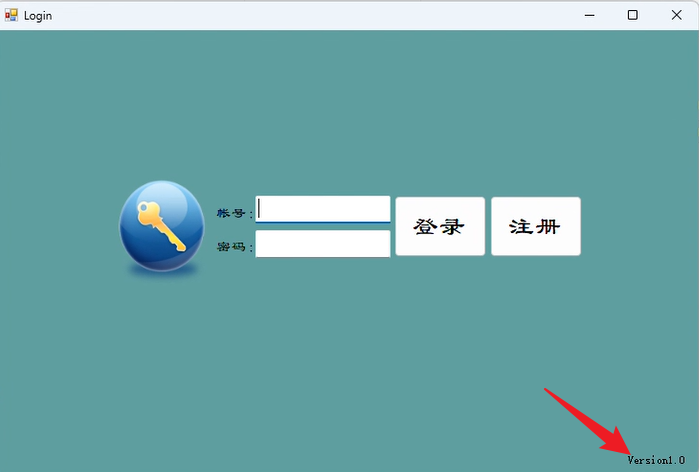
Complete the following:
|
|
| |
|
Step 6: Enter Firmware Upgrade Mode
On the machine's Fiber Module:
| |
| |
|
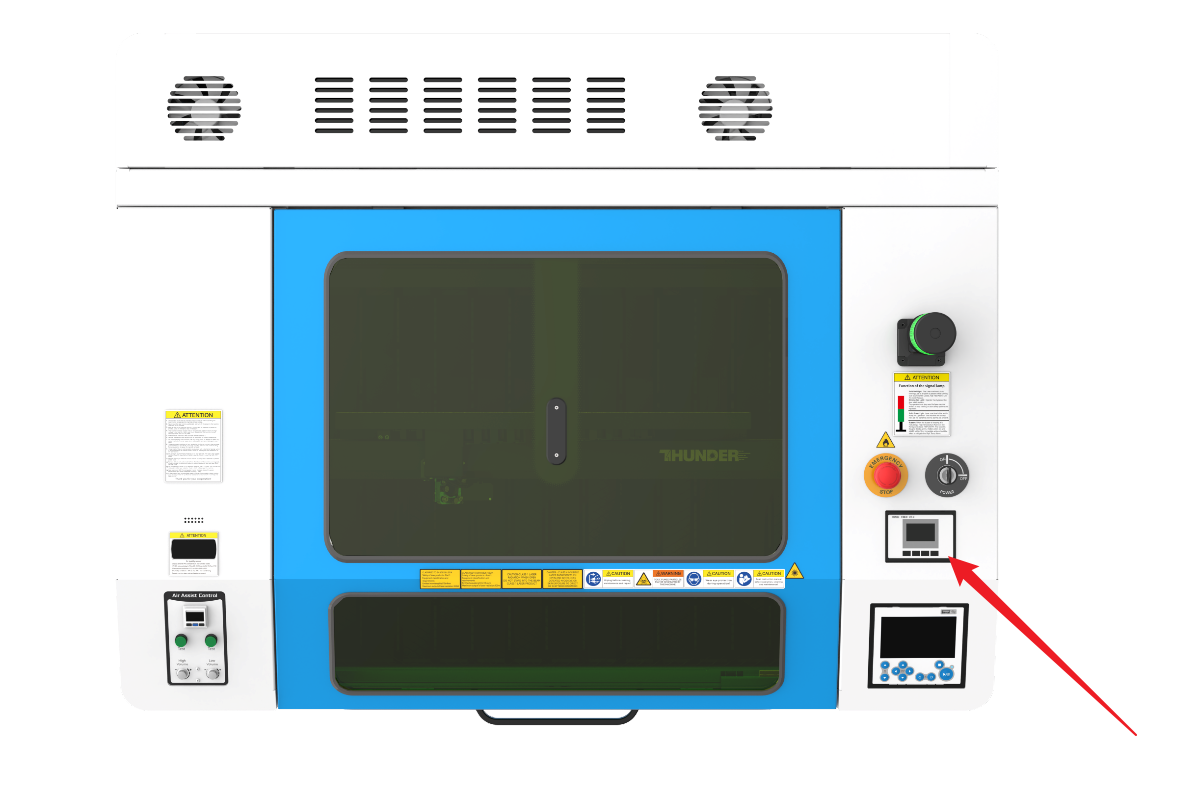
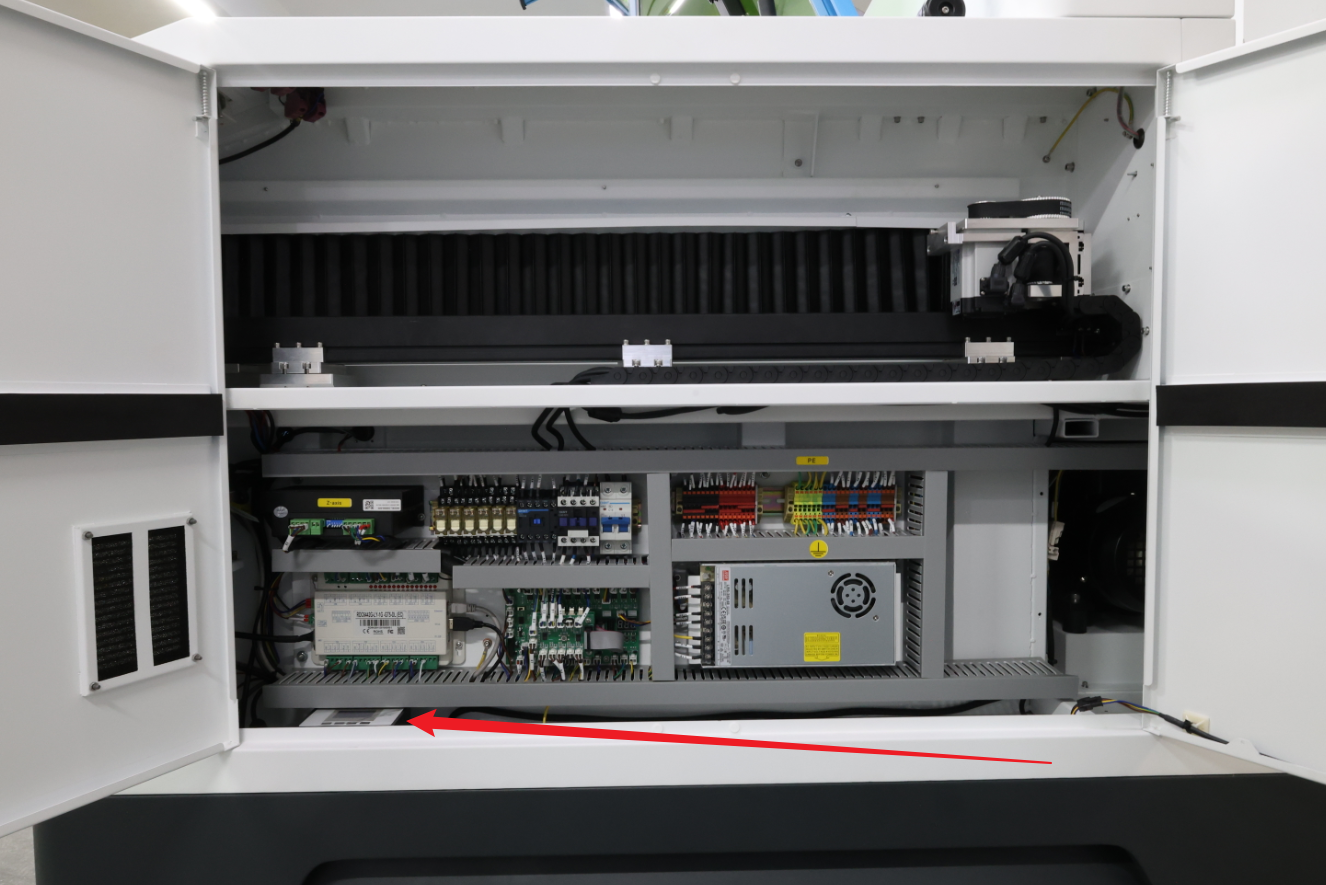
On early-production TITAN Pro machines, the Fiber Module is located under the right side of the machine's top cover. On later production machines, it is installed behind the right door panel.
Before | After |
|
|
Step 7: Start the Upgrade
|
|
|
|
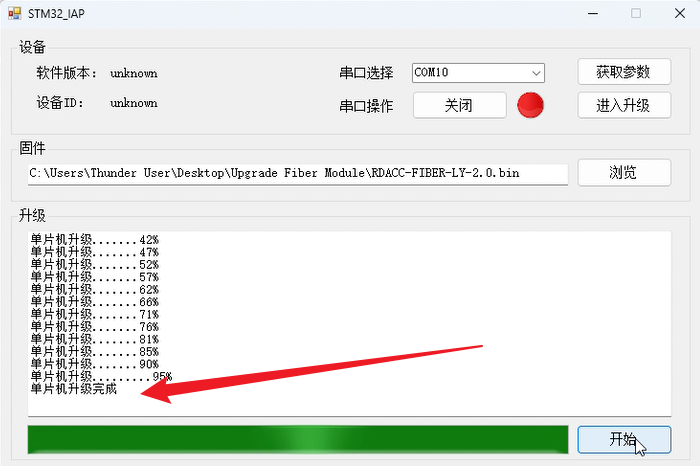

Step 8: Troubleshoot Application Crashes or Upgrade Failures
If the upgrade application crashes, restart the machine and leave it powered on and idle. Reopen V2_IAP_UPDATA.exe, repeat the settings in Step 5, and follow Steps 6–7 to retry the upgrade.
If restarting the application and machine does not resolve the issue, the recovery procedure involves disconnecting and reconnecting the controller's D4 terminal while the machine remains powered on to restart the Fiber Module. Perform this only after Thunder Laser Technical Support confirms that this terminal can be disconnected and reconnected under power on your controller.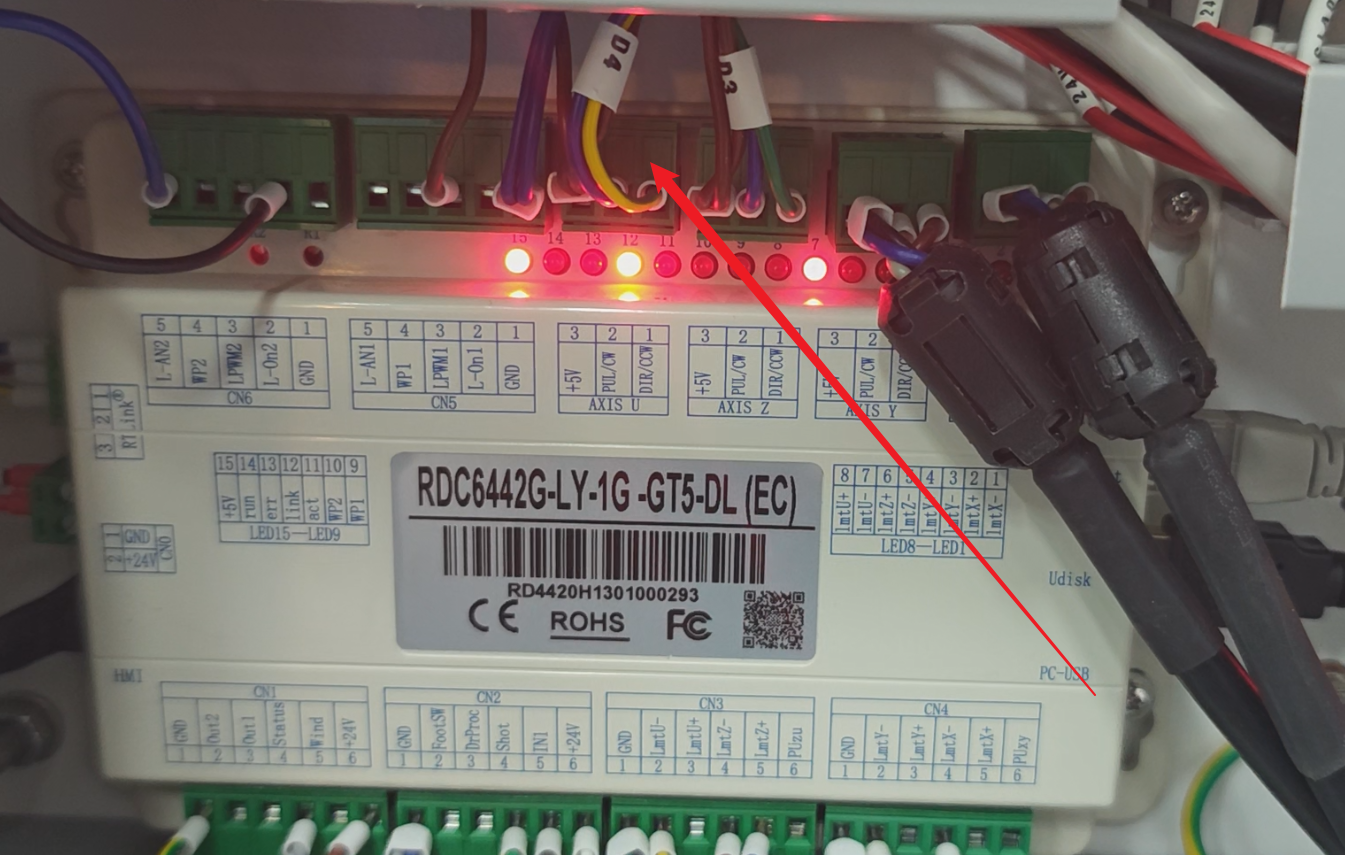 Then reopen the upgrade application, repeat the settings in Step 5, and follow Steps 6–7 to retry.
Step 9: Confirm the Upgrade
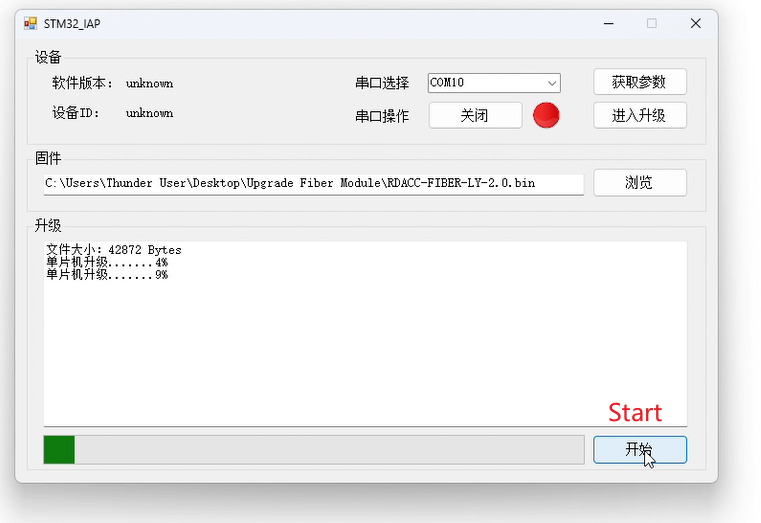
When the progress text displays “单片机升级...100%” (microcontroller upgrade complete), the Fiber Module firmware upgrade is successful.
You can check the upgrade result through Sys Upgrade on the Fiber Module.
Note: This page shows the current version, not the firmware you are upgrading to.
Still need help?
For specific technical questions or help requests, please open a Ticket with picture or video, so our Support team can assist you ASAP.
For the information provided in the ticket, please refer to this link:
Help Tech Support Troubleshoot Faster
End.